Cluster Overview

The Overview panel gives you a single view of your cluster and its resources. Clicking the Overview menu displays this dialog:
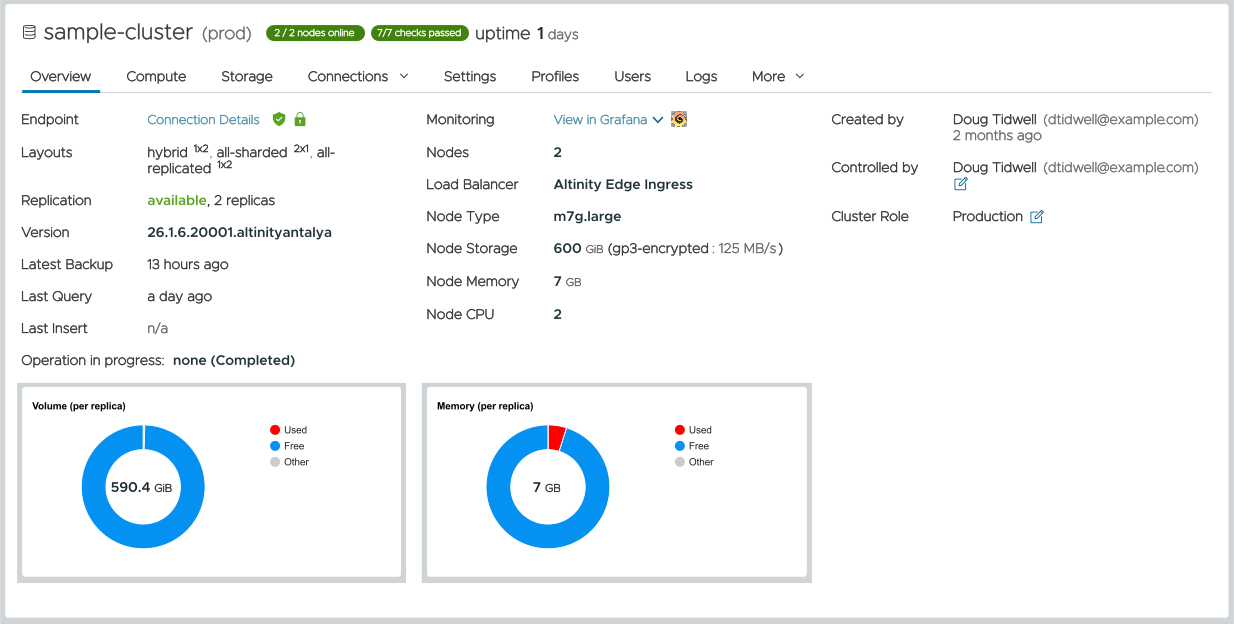
Figure 1 - The Overview dialog for a cluster
The dialog is mostly informational, but there are a few actions you can take:
Getting Connection Details
In the leftmost column, clicking the Connection Details link next to the Endpoint item gives you the details of this cluster’s URL and how to connect to it. See the Cluster Connection Details page for complete details.
Accessing Grafana dashboards
The ACM provides several Grafana dashboards to help you monitor your ClickHouse clusters. Click the View in Grafana link in the middle column to see the following menu:
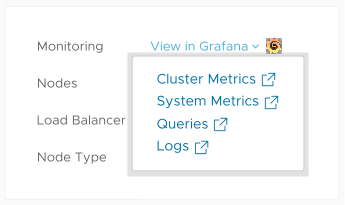
Figure 2 - The Grafana dashboards menu
The Grafana dashboards page has the details of the different dashboards and the data they visualize.
Changing a cluster’s owner
In the rightmost column you can click the  icon next to the Controlled by item to change the cluster’s owner. You’ll see this dialog:
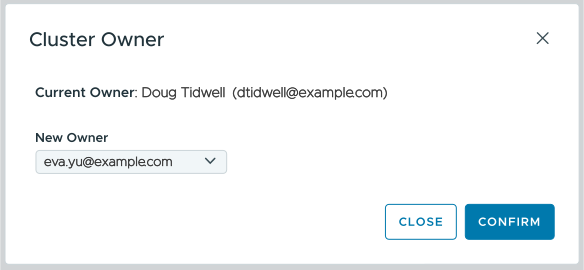
Figure 3 - The Change Cluster Owner dialog
Click the  icon to see a list of users. Select a user and click CONFIRM to change the cluster’s owner.
Changing a cluster’s role
In the rightmost column you can also click the icon next to the Cluster Role item to change the way the cluster is categorized. You’ll see this dialog:
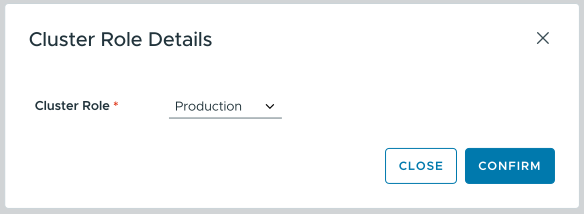
Figure 4 - The Change Cluster Role dialog
Click the icon to see a list of roles. Currently the roles are Production, Development, and Not set.
NOTE: Changing the role of an existing cluster does not change its number of replicas or its activity schedule. See the Rescaling your cluster page to change the number of replicas or the Configuring Activity Schedules page to configure how your cluster is stopped or rescaled automatically.
Select a role and click CONFIRM to change the cluster’s role.