Rescaling your cluster

You may need to change the size and structure of your ClickHouse® cluster at some point. (There are slightly different options for rescaling a swarm cluster; those are discussed below.) Clicking the Compute menu displays this dialog:
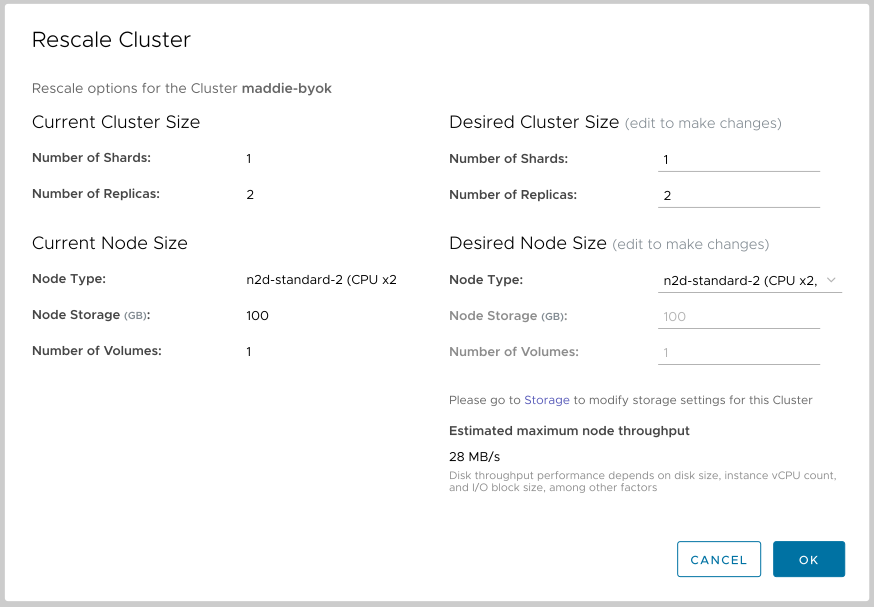
Figure 1 - The Rescale Compute dialog for a standard cluster
The current properties of your cluster are shown when you open the dialog. You can change the node type for your cluster, the number of shards, and the number of replicas. You can only specify availability zones if you create new replicas. In Figure 1, we increased the number of replicas from 2 to 4; otherwise the Availability Zones checkboxes would be disabled.
At the top of the display is an estimate of the monthly cost of your rescaled cluster, including the difference between your current configuration and the new one. Click the  button to rescale the cluster with the new values. As you would expect, the rescaling time varies with the size of the cluster, as each node is rescaled individually.
The rescaling operation takes place one node at a time, so the impact of rescaling should have a minimal impact on the performance of your applications. (Assuming your cluster has more than one replica, of course.)
You’ll get a confirmation message. If your cluster is using the RESCALE ON SCHEDULE or RESCALE WHEN INACTIVE activity schedule, the message will include a warning that you’re resetting your activity schedule:
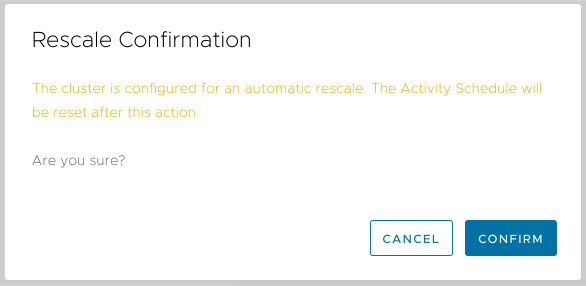
Figure 2 - The Rescale Confirmation dialog
Rescaling a swarm cluster
If you’re rescaling a swarm cluster, you can only change the node type and the number of nodes:
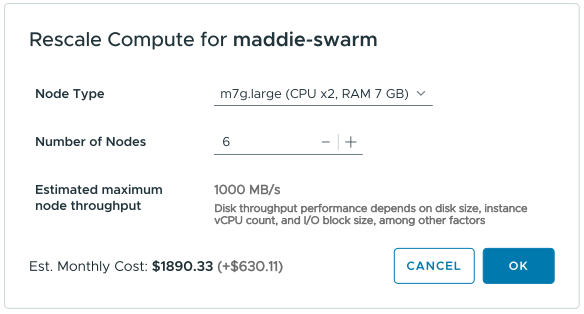
Figure 3 - Rescaling a swarm cluster
At the top of the display is an estimate of the monthly cost of your rescaled swarm cluster, including the difference between your current configuration and the new one. Click the button to scale the swarm cluster to the new values.