Setting up backups
In order for Altinity.Cloud to back up your ClickHouse® data, you need to configure access to an S3 or GCS bucket.
Vendor-specific recommendations are below:
EKS (AWS)
There are two ways to set up backups for your EKS environment: IRSA or an Instance Profile.
IRSA
The recommended way is to use IRSA (IAM Roles for Service Accounts). Here’s a quick overview of the steps:
- Create the S3 bucket you want to use for backups.
- Create a policy that gives access to the bucket and allows
s3:*in theActionsection. - Create a role and attach the policy to it.
- Modify the role’s trust relationships to include the ARN of Altinity’s
ClickHouseBackupAdminrole by adding this to the trust policy’sStatementarray:
{
  "Effect": "Allow",
  "Principal": {
    "AWS": "arn:aws:iam::313342380333:role/ClickHouseBackupAdmin"
  },
  "Action": "sts:AssumeRole"
}
- Create a K8s
ServiceAccountwith the following YAML, filling in the ARN of the role you created:
apiVersion: v1
kind: ServiceAccount
metadata:
  annotations:
    eks.amazonaws.com/role-arn: arn:aws:iam::$ACCOUNT_NUMBER:role/$ROLE_ID
  name: clickhouse-backup
  namespace: altinity-cloud-managed-clickhouse
To complete setup, go to the Environment configuration dialog and enter your bucket name, region, and the ARN of your role:
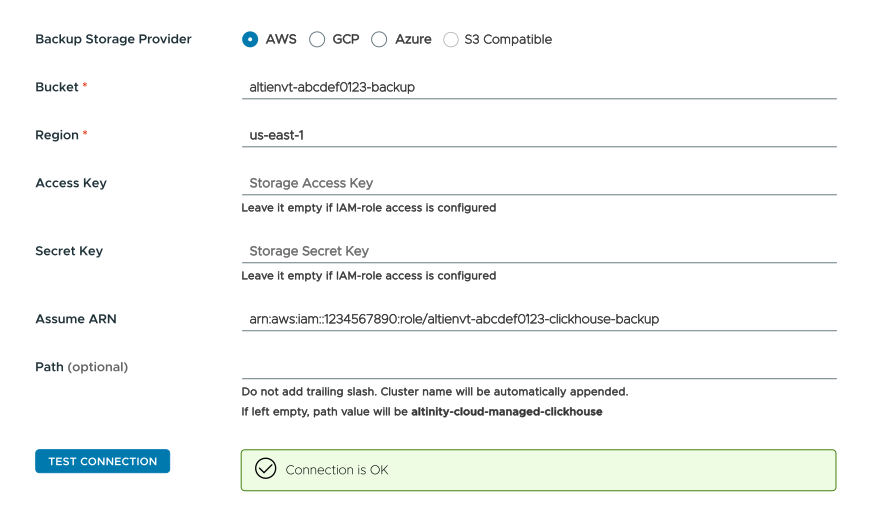
Figure 1 - Settings for external backups in a BYOK environment
Clicking the  button should give you the green box seen at the bottom of Figure 1. See the Configuring Backups documentation for complete details.
Using an Instance Profile
You can also use a custom Instance Profile or explicit credentials:
# create bucket
aws s3api create-bucket --bucket REPLACE_WITH_BUCKET_NAME --region REPLACE_WITH_AWS_REGION

# create user with access to the bucket
aws iam create-user --user-name REPLACE_WITH_USER_NAME
aws iam put-user-policy \
    --user-name REPLACE_WITH_USER_NAME \
    --policy-name REPLACE_WITH_POLICY_NAME \
    --policy-document \
'{
    "Version": "2012-10-17",
    "Statement": [
        {
            "Action": [
                "s3:GetObject",
                "s3:DeleteObject",
                "s3:PutObject",
                "s3:AbortMultipartUpload",
                "s3:ListMultipartUploadParts",
                "s3:PutObjectTagging",
                "s3:ListBucket",
                "s3:GetBucketVersioning"
            ],
            "Resource": [
                "arn:aws:s3:::REPLACE_WITH_BUCKET_NAME",
                "arn:aws:s3:::REPLACE_WITH_BUCKET_NAME/*"
            ],
            "Effect": "Allow"
        }
    ]
}'

# generate access key
aws iam create-access-key --user-name REPLACE_WITH_USER_NAME |
  jq -r '"AWS_ACCESS_KEY_ID="+(.AccessKey.AccessKeyId)+"\nAWS_SECRET_ACCESS_KEY="+(.AccessKey.SecretAccessKey)+"\n"' > credentials.env

# create altinity-cloud-system/clickhouse-backup secret containing AWS_ACCESS_KEY_ID & AWS_SECRET_ACCESS_KEY
kubectl create secret -n altinity-cloud-system generic clickhouse-backup \
  --from-env-file=credentials.env

rm -i credentials.env
Use your private customer Slack channel to send the bucket name to Altinity in order to finish configuration.
GKE (GCP)
Use a GCP service account for the instance or explicit credentials (shown below).
# create bucket
gsutil mb gs://REPLACE_WITH_BUCKET_NAME

# create GCP SA with access to the bucket
gcloud iam service-accounts create REPLACE_WITH_GCP_SA_NAME \
  --project=REPLACE_WITH_PROJECT_ID \
  --display-name "REPLACE_WITH_DISPLAY_NAME"
gsutil iam ch \
  serviceAccount:REPLACE_WITH_GCP_SA_NAME@REPLACE_WITH_PROJECT_ID.iam.gserviceaccount.com:roles/storage.admin \
  gs://REPLACE_WITH_BUCKET_NAME

# generate GCP SA key
gcloud iam service-accounts keys create credentials.json \
--iam-account=REPLACE_WITH_GCP_SA_NAME@REPLACE_WITH_PROJECT_ID.iam.gserviceaccount.com \
--project=REPLACE_WITH_PROJECT_ID

# create altinity-cloud-system/clickhouse-backup secret containing GOOGLE_APPLICATION_CREDENTIALS
kubectl create secret -n altinity-cloud-system generic clickhouse-backup \
  --from-file=GOOGLE_APPLICATION_CREDENTIALS=credentials.json

rm -i credentials.json
Use your private customer Slack channel to send the bucket name to Altinity in order to finish configuration.
AKS (Azure)
The recommended way is to use Managed identities or explicit credentials (shown below).
az storage account create --resource-group REPLACE_WITH_RESOURCE_GROUP_NAME \
--name REPLACE_WITH_STORAGE_ACCOUNT_NAME --location REPLACE_WITH_LOCATION --sku Standard_LRS --kind StorageV2
az storage container create --account-name REPLACE_WITH_STORAGE_ACCOUNT_NAME \
--name REPLACE_WITH_STORAGE_CONTAINER_NAME --auth-mode key --fail-on-exist

  # create altinity-cloud-system/clickhouse-backup secret containing AZURE_STORAGE_ACCOUNT & AZURE_STORAGE_KEY
kubectl create secret -n altinity-cloud-system generic clickhouse-backup \
--from-literal="AZURE_STORAGE_ACCOUNT=REPLACE_WITH_STORAGE_ACCOUNT_NAME" \
--from-literal="AZURE_STORAGE_KEY=$(az storage account keys list --account-name REPLACE_WITH_STORAGE_ACCOUNT_NAME \
--output tsv --query [0].value)" \
--from-literal="CONTAINER=REPLACE_WITH_BACKUP_CONTAINER_NAME"