Working with Data Lakes
Our next step is to create a data lake. With the data lake created, we’ll run queries against it with the swarm cluster we created earlier.
Here are the steps we’ll go through:
- Enable an Iceberg catalog for our Altinity.Cloud environment
- Get the connection details for our Iceberg catalog
- Write data to our Iceberg catalog (this takes place outside the ACM)
- Create a ClickHouse database that’s connected to our Iceberg catalog
- Use a swarm cluster to run queries against that database
Enabling an Iceberg catalog
Before we can work with data lakes, we need to enable an Iceberg catalog for your Altinity.Cloud environment. From the Environments tab, select the Catalogs menu item:
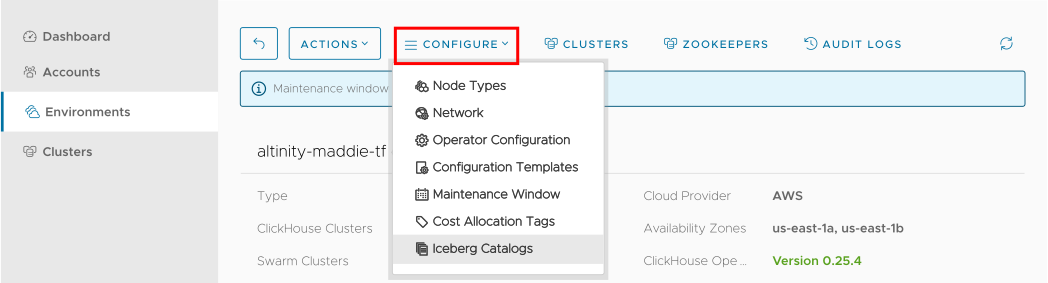
Figure 1 - The Catalogs menu item
You’ll see this dialog:
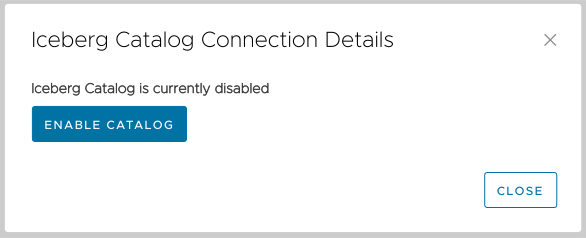
Figure 2 - Enabling an Iceberg catalog
Click the  button to enable the catalog. (You may need to click the
  button a few times while the catalog is created.) When the catalog is enabled, you’ll see the connection details for the catalog:
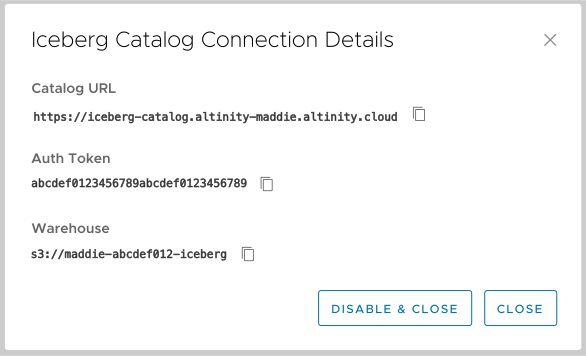
Figure 3 - Connection details for the Iceberg catalog
The Altinity Cloud Manager now supports creating multiple catalogs, including (for SaaS and BYOC environments) catalogs stored in your AWS account. Complete information about working with Iceberg catalogs is in the Enabling an Iceberg Catalog documentation.
Any time you need the connection details for a cluster you can click on the Catalog menu. You’ll see a list of all your catalogs, along with a Connection Details link next to each one:
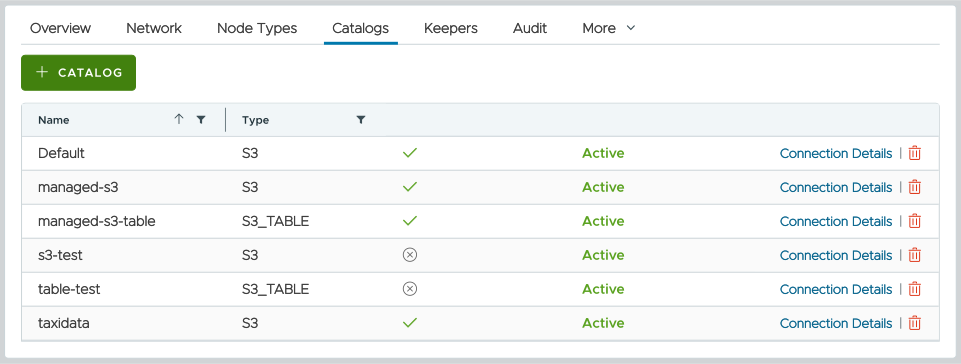
Figure 4 - The catalog list
Writing data to the Iceberg catalog
Now it’s time to take the credentials from Figure 3 above and use them to load data into our catalog. There are a number of tools that can do this, but we’ll use Ice, an open-source tool from Altinity.
First, we’ll put the connection details into the file .ice.yaml:
uri: https://iceberg-catalog.altinity-maddie-saas.altinity.cloud
bearerToken: abcdef0123456789abcdef0123456789
(Notice that the field in the YAML file is uri, not url.)
With the YAML file configured, we’ll load a Parquet file from the AWS public blockchain dataset into the catalog entry named blockchain.data (be sure your AWS credentials are set before you try to insert data into the catalog):
ice insert blockchain.data -p https://aws-public-blockchain.s3-us-east-2.amazonaws.com/v1.0/btc/transactions/date%3D2025-08-01/part-00000-8ca60cbb-93c2-4f8c-a2f3-055c657da159-c000.snappy.parquet
For this example, we loaded the blockchain data from the first day of August, 2025.
Creating a database from the Iceberg catalog
By using the connection details in Figure 3 above, we were able to load data into the catalog. But now we need to create a ClickHouse database to query the data in our catalog. We do that with the DataLakeCatalog engine, which lets us query an Iceberg table like any other ClickHouse data source.
Using the information in Figure 3 above, here’s the syntax:
CREATE DATABASE maddie
ENGINE = DataLakeCatalog('https://iceberg-catalog.altinity-docs.altinity.cloud')
SETTINGS catalog_type = 'rest', auth_header = 'Authorization: Bearer abcdef1234567890abcdef1234567890', warehouse = 's3://altidocs-01234567-iceberg'
See the section Creating a database from the Parquet data in your catalog for complete details.
Using swarm clusters to run queries against our Iceberg catalog
At this point we can use our swarm cluster to run queries against this table, which is actually a link to our Iceberg catalog of Parquet files stored on S3-compatible storage. We’ll see similar performance improvements as in the previous section. As we mentioned above, our sample catalog contains public blockchain data from the first ten days of August, 2025.
We’ll start by running the query from the previous section against our data lake without swarms:
SELECT date, sum(output_value)
FROM maddie.`blockchain.data`
WHERE date >= '2025-08-01'
GROUP BY date
ORDER BY date
LIMIT 10
We get these results:
    ┌─date───────┬──sum(output_value)─┐
 1. │ 2025-08-01 │  765015.4144215047 │
 2. │ 2025-08-02 │   468510.929370189 │
 3. │ 2025-08-03 │ 465258.31995901733 │
 4. │ 2025-08-04 │  683513.1045118246 │
 5. │ 2025-08-05 │  609936.6882308874 │
 6. │ 2025-08-06 │  626958.1893022532 │
 7. │ 2025-08-07 │  605012.0557144039 │
 8. │ 2025-08-08 │  625050.3468524646 │
 9. │ 2025-08-09 │   438600.899152057 │
10. │ 2025-08-10 │ 456397.45688583393 │
    └────────────┴────────────────────┘
With these statistics:
query time: 1.887s, read rows: 4161101, read bytes: 253276483
Now we’ll run the query with a swarm:
SELECT date, sum(output_value)
FROM maddie.`blockchain.data`
WHERE date >= '2025-01-01'
GROUP BY date
ORDER BY date
LIMIT 10
SETTINGS object_storage_cluster='maddie-swarm'
We get the same results, only much faster:
query time: 0.819s, read rows: 4161101, read bytes: 253276483
Those are the results from our first query. Running it again with a loaded filesystem cache is even better:
query time: 0.305s, read rows: 4161101, read bytes: 253276483
Even though this is a very small data lake, a swarm-assisted query is over 6X faster once the cache is loaded. As you work with larger data lakes and larger swarm clusters, the performance benefits will be even greater.
That’s a look at swarm clusters and how they can make your queries much faster and efficient. Let’s move on to our next topic…