Configuring Activity Schedules
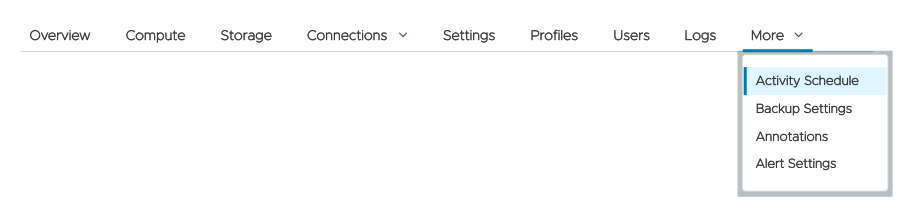
The Activity Schedule settings let you, um, schedule activities. That includes actions like stopping, restarting, or scaling your clusters on a schedule as well as running queries on a schedule.
Controlling when and how your clusters run
Altinity.Cloud does not bill you for compute resources or support for non-running clusters, so you can cut your costs by stopping ClickHouse clusters that don’t need to run constantly. (Note that these cost savings do not apply to storage and backups.) You can also cut your costs by scaling your ClickHouse clusters down to smaller, cheaper nodes during non-peak hours or after your cluster has been inactive for a period of time. Finally, you can schedule certain actions, such as a cluster restart.
Initially the dialog is set to ALWAYS ON:
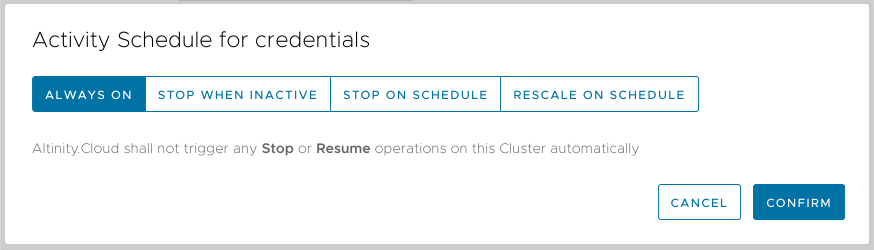
Figure 1 – The initial activity schedule
The five uptime and rescale options are:
- ALWAYS ON - the cluster is always running. This is the default.
- STOP WHEN INACTIVE - the cluster stops running after some number of hours of inactivity.
- STOP ON SCHEDULE - the cluster runs only on certain days of the week or at certain times of the day.
- RESCALE ON SCHEDULE - the cluster is always running, but it scales up or down to different node types on certain days of the week or at certain times of the day.
- RESCALE WHEN INACTIVE - the cluster scales to a different node type after some number of hours of inactivity.
ALWAYS ON
Used for mission-critical ClickHouse clusters that must run 24/7, shown in Figure 1 above. Click ALWAYS ON, then click SAVE SCHEDULE to save. Note that with this setting, Altinity.Cloud will not trigger any Stop or Resume operations automatically. If you stop the cluster, you’ll have to resume or restart it yourself; setting the schedule to ALWAYS ON will not automatically resume or restart it.
STOP WHEN INACTIVE
Used to stop ClickHouse clusters after a set number of hours of inactivity. For non-running clusters, Altinity.Cloud does not bill you for compute resources or support, although charges for storage and backups continue.
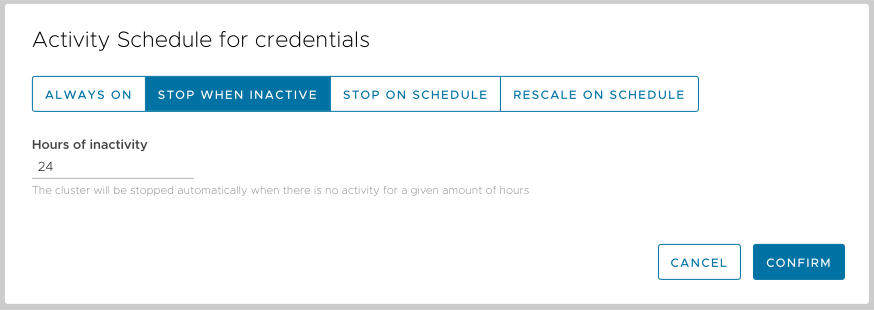
Figure 2 – The STOP WHEN INACTIVE Activity Schedule setting
Click STOP WHEN INACTIVE, then select the number of hours by typing in a value or by using the up and down arrows. Click SAVE SCHEDULE to save. A  icon will appear next to the cluster name in the Clusters Dashboard.
NOTE: If your cluster is defined as a Development cluster, by default it is set to stop after 24 hours of inactivity.
ANOTHER NOTE: The ACM may give you a warning message if your cluster has been inactive for a while:

Figure 3 - Unused cluster warning message
STOP ON SCHEDULE
Sets the days of the week your ClickHouse clusters will run, with the option of defining From and To times that your clusters will run for each day.
The schedule below defines the following settings:
- On Tuesday and Thursday, the cluster runs from 08:00 to 17:00 GMT, and is stopped the rest of the day.
- On Monday, Wednesday, and Friday, the cluster runs all day.
- On Saturday and Sunday, the cluster is stopped.
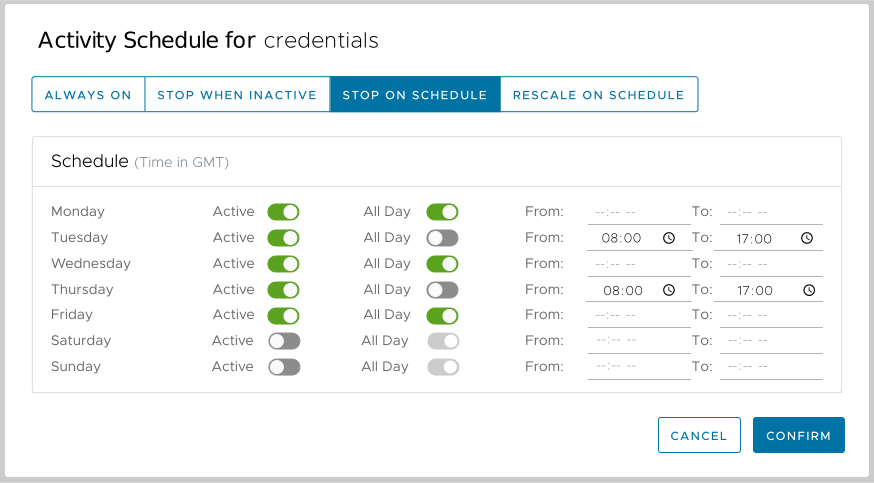
Figure 4 - The STOP ON SCHEDULE Activity Schedule setting
By default, times are expressed in GMT and are displayed in 12- or 24-hour format depending on your machine’s settings. Clicking on the text GMT +00:00 takes you to the Time zone Update dialog:

Figure 5 - The Time zone Update dialog
Select a time zone and click the CONFIRM button to change the time zone.
In the Activity Schedules dialog, click SAVE SCHEDULE to save. A icon will appear next to the cluster name in the Clusters Dashboard.
Be aware that manually rescaling a cluster will reset the Activity Schedule to ALWAYS ON. Rescaling the cluster changes the node type it’s running on, so if you want to use the STOP ON SCHEDULE schedule you need to redefine the times the cluster should be stopped. You’ll be asked to acknowledge this before rescaling the cluster:
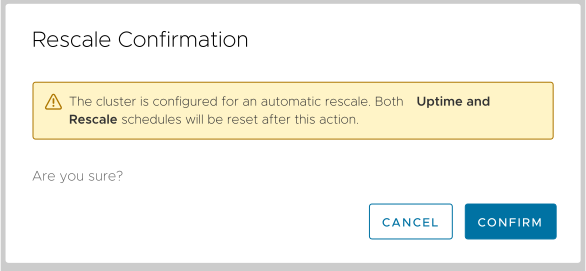
Figure 6 - Acknowledging the consequences of rescaling a cluster
Also be aware that manually stopping the cluster will reset your activity schedule to ALWAYS ON. You’ll be asked to acknowledge this before stopping the cluster:
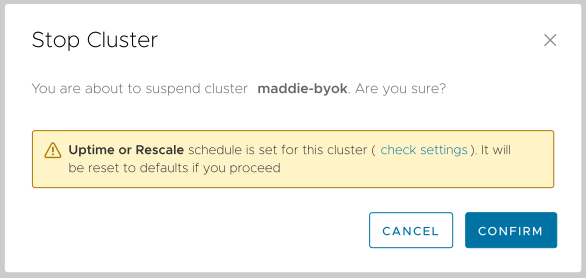
Figure 7 - Acknowledging the consequences of stopping a cluster
You can click the check settings link in the dialog to see the cluster’s current activity schedule.
RESCALE ON SCHEDULE
With this option your ClickHouse cluster is always running, but you can define the days of the week your cluster will run on larger, more powerful nodes, with the cluster rescaling to smaller, cheaper nodes the rest of the time. You also have the option of defining From and To times when your clusters will use the larger nodes. By default the cluster runs on the larger nodes all the time.
NOTE: These settings do not start, resume, or restart the cluster, they merely define peak days or hours (Active state) when the cluster should run on larger nodes. When the cluster is in Inactive state, it’s still running, just on smaller nodes.
In the example here, the Active node type is m7g.large, and the Inactive Node Type is m5.large. The Active node type is set when you create the ClickHouse cluster. To change the Inactive node type, click the  icon to see the list of available node types.
The schedule below defines the following settings:
- On Monday, the cluster starts the day in Inactive state (running on node type
m5.large), scaling up to Active state (running on node typem7g.large) at 08:00 GMT and continuing through the rest of the day. - On Tuesday, Wednesday, and Thursday, the cluster is in Active state (running on node type
m7g.large) all day. - On Friday, the cluster starts the day at midnight in Active state (running on node type
m7g.large), scaling down to Inactive state (running on node typem5.large) at 17:00 GMT and continuing through the rest of the day. - On Saturday, the cluster is in Active state (running on node type
m7g.large) from 09:00 GMT to 17:00 GMT, and is in Inactive state (running on node typem5.large) all other times of the day. - On Sunday, the cluster is in Inactive state (running on node type
m5.large) all day.
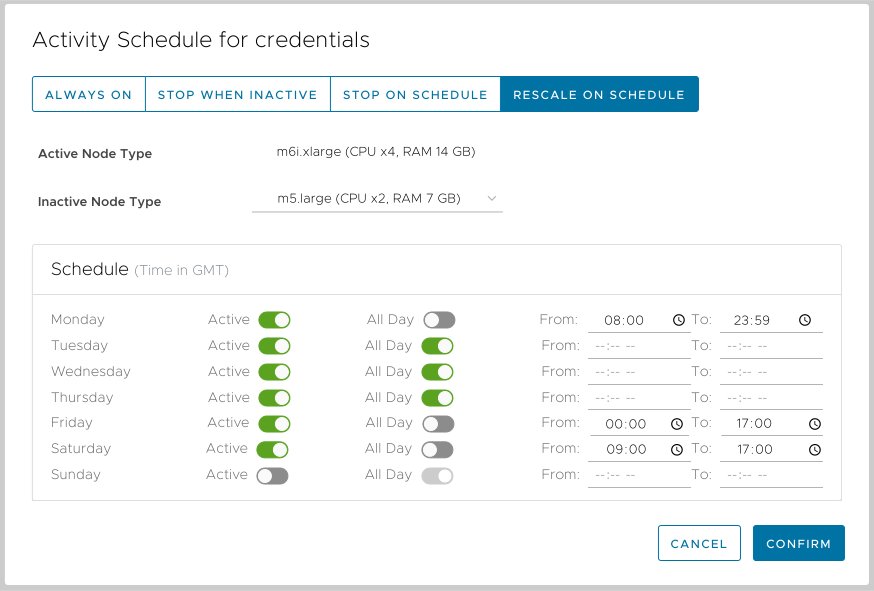
Figure 8 – The RESCALE ON SCHEDULE Activity Schedule setting
By default, times are expressed in GMT and are displayed in 12- or 24-hour format depending on your machine’s settings. Clicking on the text GMT +00:00 takes you to the Time zone Update dialog shown above in Figure 5.
In addition, activity schedules for swarm clusters can also specify the number of nodes the cluster should have when inactive:
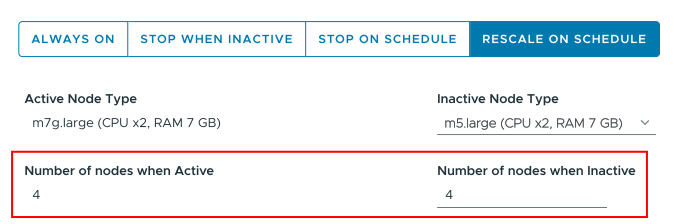
Figure 9 - Setting the number of nodes for an inactive swarm cluster
Be aware that manually rescaling a cluster will reset the Activity Schedule to ALWAYS ON. Rescaling the cluster changes the node type it’s running on, so if you want to use the RESCALE ON SCHEDULE schedule you need to redefine the Active and Inactive node types and the times they should be used. You’ll be asked to acknowledge this before rescaling the cluster:
Figure 10 - Acknowledging the consequences of rescaling a cluster
Also note that manually stopping the cluster will reset your activity schedule to ALWAYS ON as well. You’ll be asked to acknowledge this before stopping the cluster:
Figure 11 - Acknowledging the consequences of stopping a cluster
You can click the check settings link in the dialog to see the cluster’s current activity schedule.
RESCALE WHEN INACTIVE
Used to rescale ClickHouse clusters to a different node type after a set number of hours of inactivity. The cluster keeps running, but it’s on a different node type.
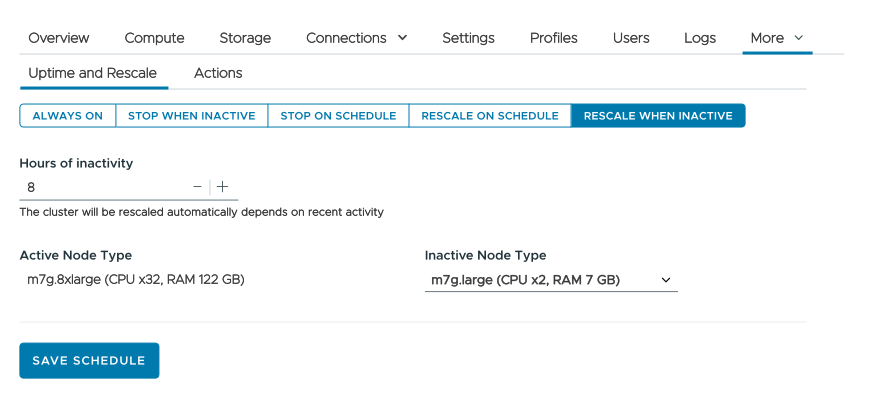
Figure 12 – The RESCALE WHEN INACTIVE Activity Schedule setting
In Figure 12, the node type for an active cluster is m7g.8xlarge. After a certain period of inactivity, the cluster’s nodes will scale down to m7g.large.
NOTE: This setting does not start, resume, or restart the cluster. Once the cluster has been inactive for the length of time you specify, it will be scaled to run on a different node type. When the cluster has some activity, it will be scaled back to the active node type. The cluster never stops, it just runs on smaller nodes when it’s not active.
In addition, activity schedules for swarm clusters can also specify the number of nodes the cluster should have when inactive:
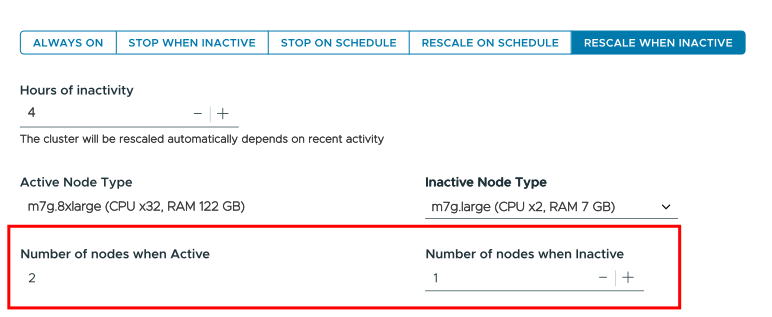
Figure 13 - Setting the number of nodes for an inactive swarm cluster
Click RESCALE WHEN INACTIVE, select the number of hours by typing in a value or by using the up and down arrows, and choose a new node type from the drop-down list. If this is a swarm cluster, you can change the number of nodes when this cluster is inactive. Click SAVE SCHEDULE to save. A icon will appear next to the cluster name in the Clusters Dashboard.
Scheduling actions and queries
In addition to uptime and rescaling settings, you can also schedule actions that your cluster should take and queries it should run.
Click the Actions and Queries tab to see the list of actions and queries currently defined:
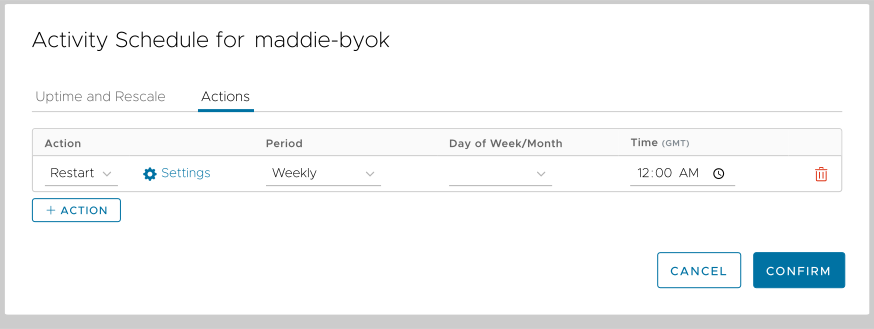
Figure 14 - The list of Actions and Queries
Scheduling actions
In Figure 14 above, the cluster will be restarted every Sunday night at midnight GMT. (As with the other settings here, all times are in GMT by default, but you can click on the text GMT +00:00 to go to the Time zone Update dialog shown above in Figure 5.)
Clicking the  button creates a new action, a clicking the
  icon deletes one. Clicking the
  button takes you to a dialog that lets you enter details for the action:
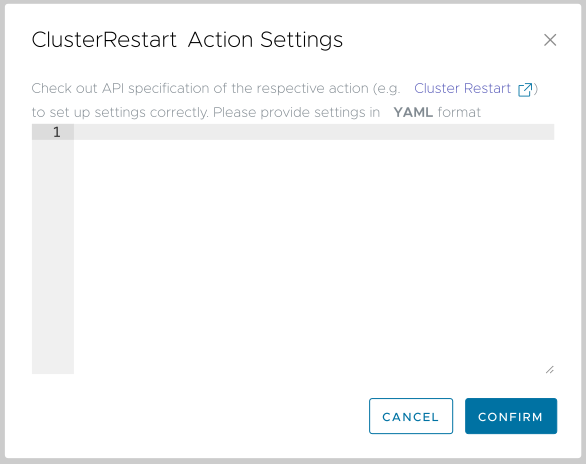
Figure 15 - Settings dialog for a action
In Figure 15, you can enter YAML settings for the action. Clicking the link above the text area takes you to the documentation for this cluster action.
When you’ve created the actions and queries you need, click the  button to save everything.
Scheduling queries
You can create queries that run on a schedule. This is useful for running queries that summarize the state of your data at a particular point in time.
NOTE: Be aware that whenever ClickHouse runs a scheduled query, that resets the clock for any activity settings that occur after a period of inactivity. In other words, if you schedule your cluster to stop after eight hours of inactivity but then schedule a query to run every six hours, the cluster will never stop.
To create a scheduled query, click the  button. As you hover over the button, you’ll be told that clicking it takes you to the SQL Console:
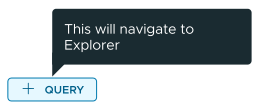
Figure 16 - Clicking the Query button takes you to the SQL Console
Click the button to go to the console. In the SQL Console, enter the query you want to schedule:
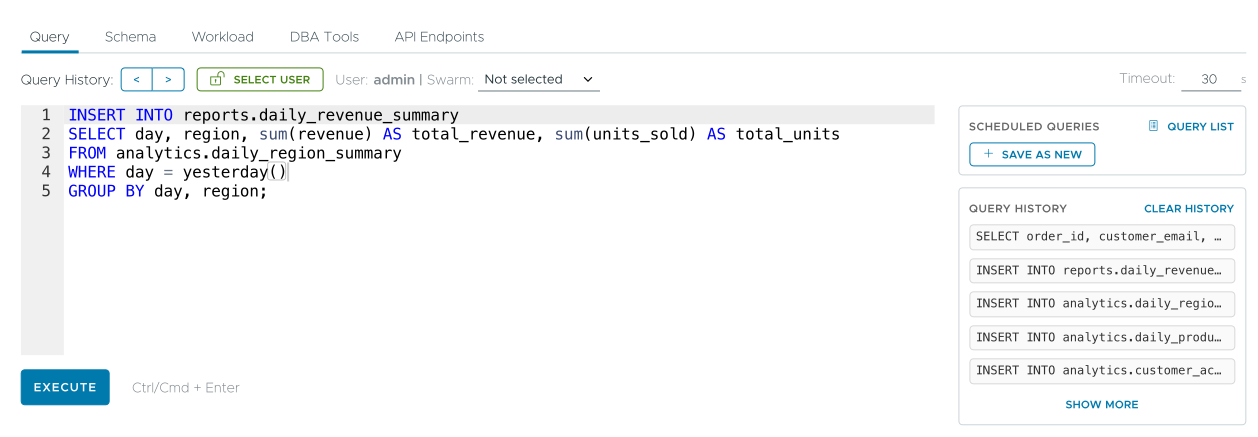
Figure 17 - Creating a scheduled query
Here we have a query that generates results and inserts them into a table; we’ll schedule the query to run daily at midnight. When the query works the way you want, click the  button to the right of the text area to create the new query. You’ll see this dialog:
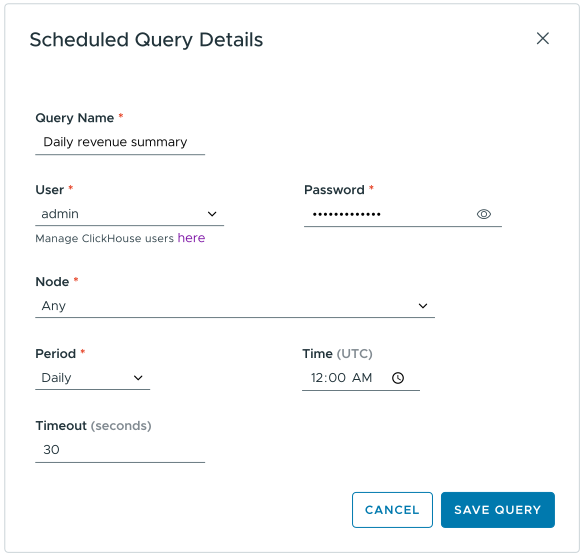
Figure 18 - The Scheduled Query Details dialog
Give the query a name, set any other parameters you need, then click the  button to save the query. That will take you back to the list of actions and queries shown in Figure 14 above.
Clicking the button next to a scheduled query takes you to the ClusterQuery Action Settings dialog:
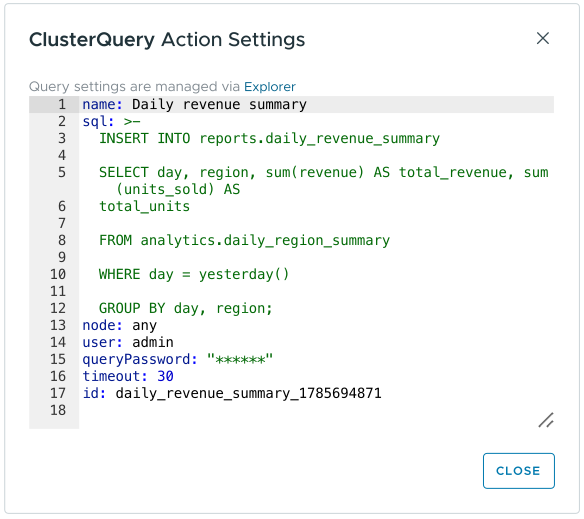
Figure 19 - The ClusterQuery Action Settings dialog
This simply displays the settings for the query. To change them, click the  button next to a scheduled query. As you hover over the button, you’ll be told that clicking it takes you to the SQL Console:
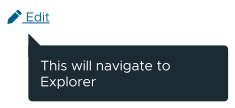
Figure 20 - Clicking the Edit button takes you to the SQL Console
When you’re in the SQL Console, the dialog box to the right of the text area lets you know you’re editing an existing query:

Figure 21 - Editing an existing query
Make any changes you need, then click the  button to save the query, or click the button to save this as a new query. Clicking the
  button takes you back to the list of actions and queries shown above in Figure 14.
Finally, clicking the  button next to a scheduled query shows you the log of all the times this query has been run:
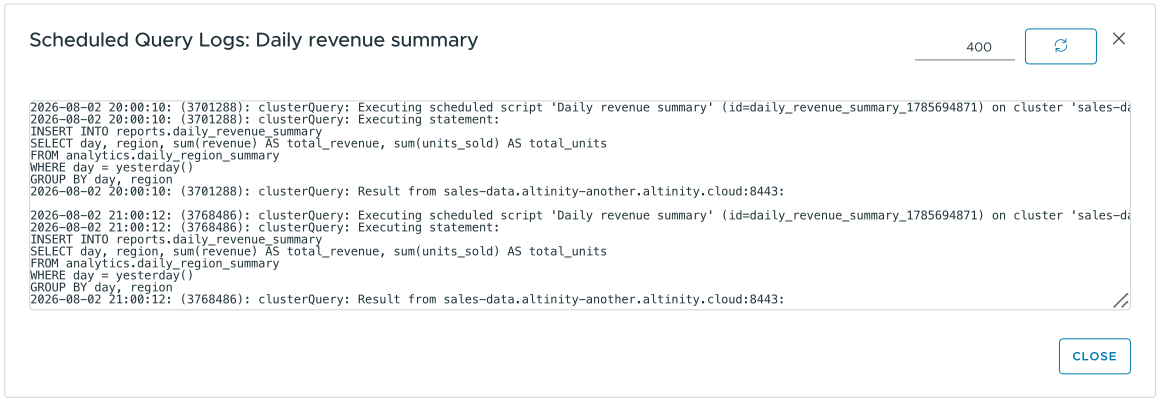
Figure 22 - The query log for a scheduled query
When you’ve created the actions and queries you need, click the button to save everything.