Enabling Iceberg Catalogs
An Iceberg catalog is a registry of Parquet files and metadata that makes it easy to work with datasets stored in object storage. The ACM makes it easy to work with an Iceberg catalog inside SaaS and Bring Your Own Cloud (BYOC) environments.
For Bring Your Own Kubernetes (BYOK) environments, Altinity doesn’t have access to create S3 buckets in your account, so this feature is disabled inside the ACM:
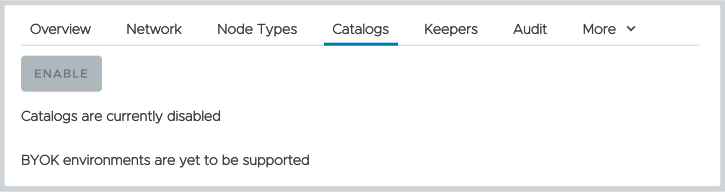
Figure 1 - Working with catalogs in the ACM is disabled for BYOK environments
However, you can still use catalogs outside the ACM. See the instructions for using Terraform to enable Iceberg catalogs in BYOK environments at the bottom of this page.
Enabling Iceberg catalogs in SaaS and BYOC environments
The first time you visit the Catalogs tab on the Environment summary view, you’ll be told that Iceberg catalogs are not enabled:
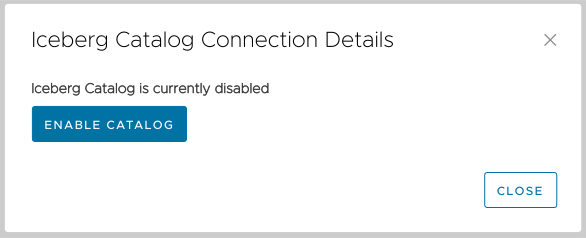
Figure 2 - Iceberg catalogs are not enabled
Click the  button to enable catalogs. You’ll see this dialog:
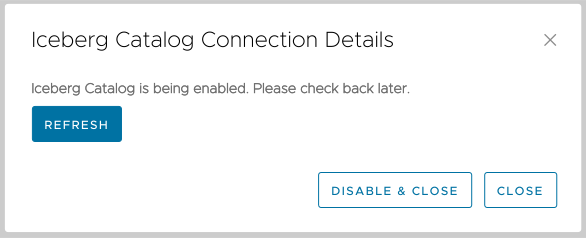
Figure 3 - Iceberg catalog enablement in progress
Your catalog is not enabled yet. At some point the status of the catalog will be Active, indicating that your catalog is enabled:
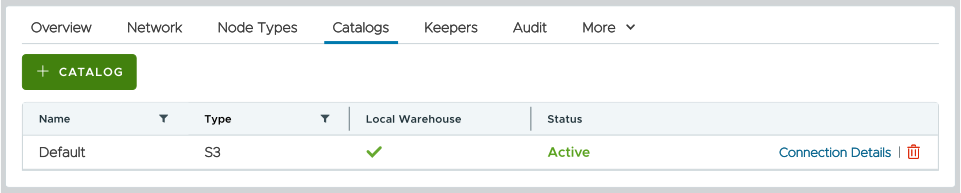
Figure 4 - Catalog enabled
You can create other Iceberg catalogs; we’ll cover how to do that next. However, if you just want to start working with the default catalog, you can skip ahead to the sections on Getting a catalog's connection details, Using ice to insert Parquet data into your catalog, and Creating a database from the Parquet data in your catalog.
Creating Iceberg catalogs
When you enable Iceberg catalogs, the ACM creates a default catalog for you. You can create other catalogs by clicking the  button. You’ll see this dialog:
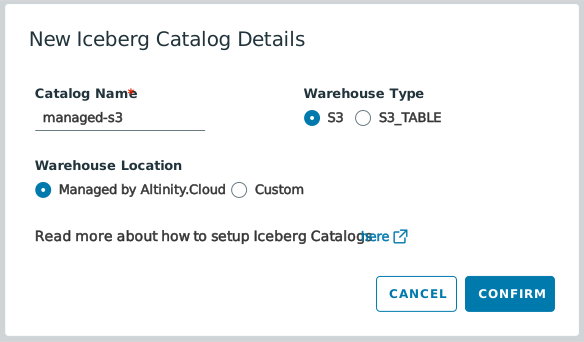
Figure 5 - Creating a new Iceberg catalog
There are two options for the storage of your catalog: an AWS S3 bucket or an AWS S3 table bucket. In addition, you can create the catalog in Altinity-managed storage or in your own AWS account.
Creating an Iceberg catalog in Altinity-managed storage
Using Altinity-managed storage is the simplest way to create a new catalog. As shown in Figure 5 above, simply give your new catalog a name and choose whether it should use an S3 bucket or an S3 table bucket. Click CONFIRM and your bucket will be created. Simple as that.
Creating an Iceberg catalog in an S3 bucket in your AWS account
As you would imagine, things are a little more complicated if you want to use storage in your own account. The first step is to create an S3 bucket in the AWS console:
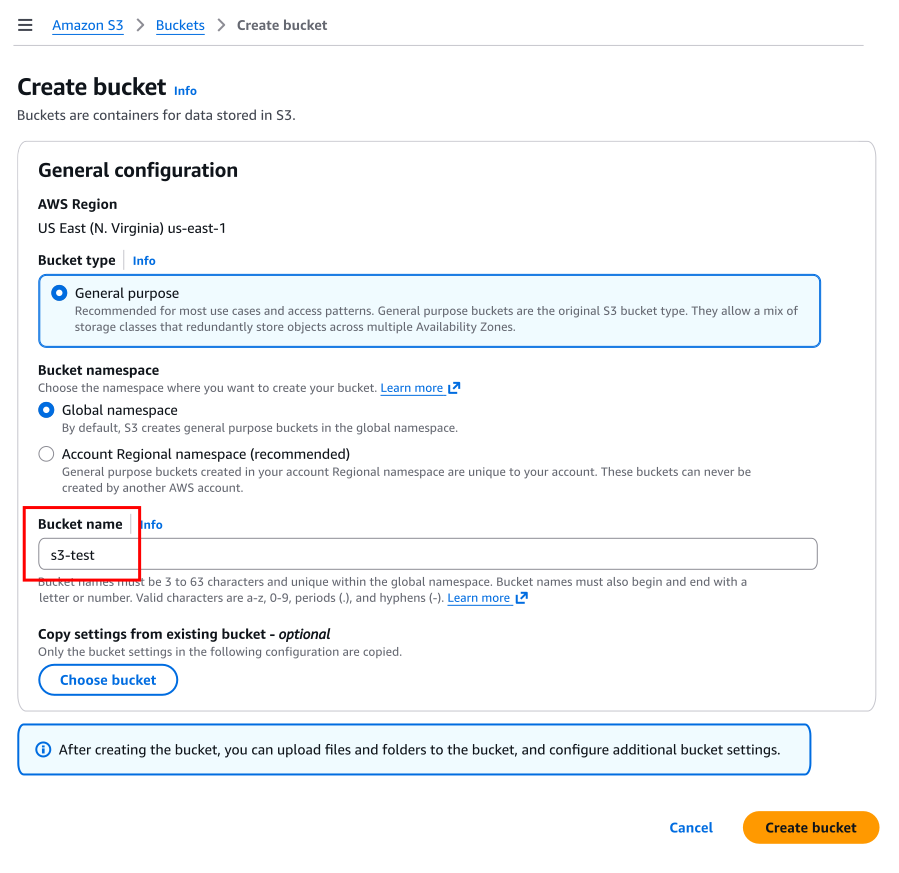
Figure 6 - Creating a new S3 bucket
Give your bucket a name (it’s s3-test in Figure 6 above) and click the Create Bucket button at the bottom of the page. Now click on the name of the bucket you just created in the list of buckets, then click the Create Folder button:
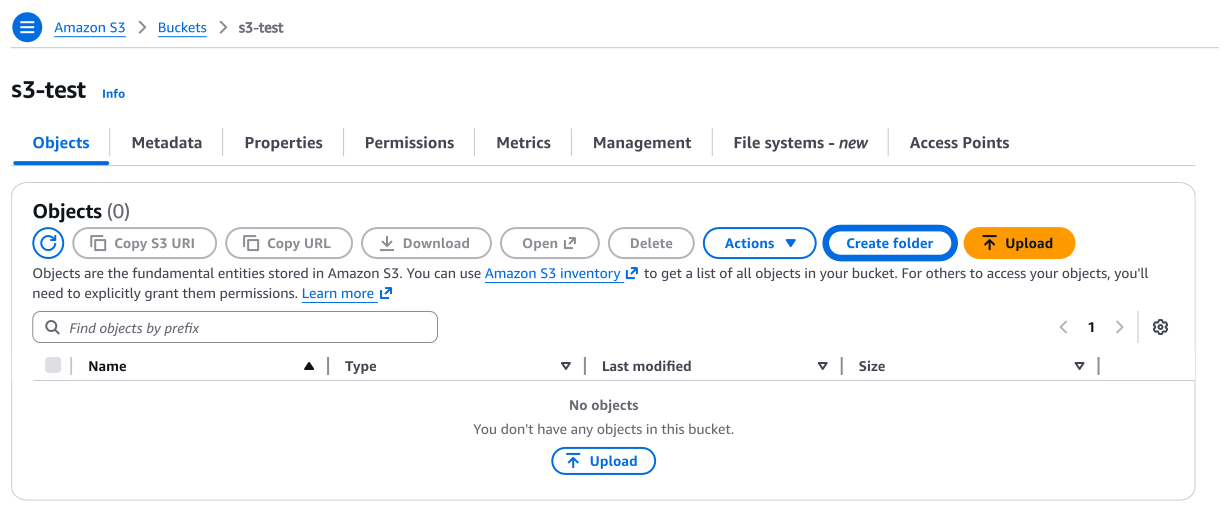
Figure 7 - The Create Folder button
Give the folder a name and click Create Folder at the bottom of the panel:
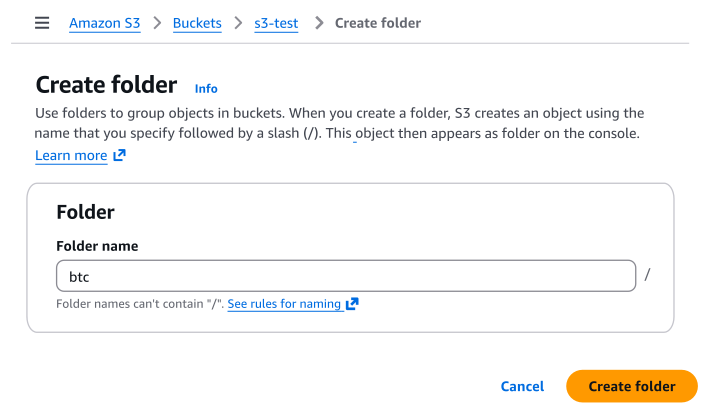
Figure 8 - Creating the folder
We created a folder named btc. (You can create several levels of folder if you want.) Now go back to the ACM and click the button, give your catalog a name, then choose a Warehouse Type of S3 and a Warehouse Location of Custom:
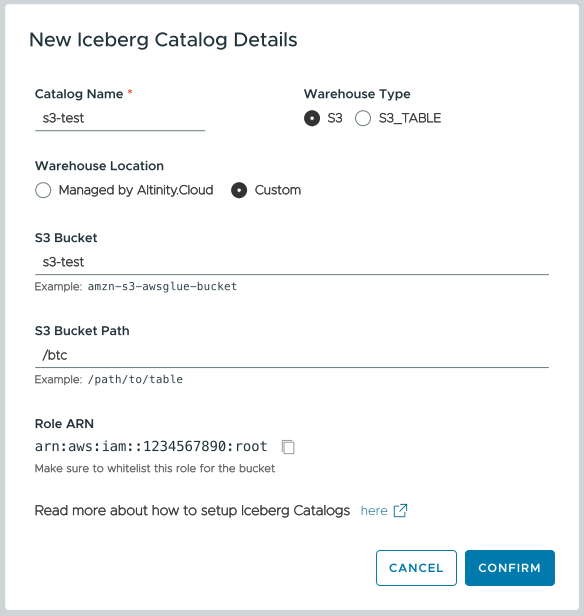
Figure 9 - Create an Iceberg catalog in an S3 bucket in your AWS account
Enter the name of your S3 bucket and the folder you created inside the bucket. Click the  copy icon to copy the Altinity ARN. While the ACM is creating the Iceberg catalog, we’ll go back to the AWS console and use the Altinity ARN so ClickHouse can write data to your bucket.
Be sure to copy the Altinity ARN before you go on.
Click CONFIRM to create the new catalog. It will take a short while for that to finish, so head back to the AWS console for your S3 bucket. Go to the Permissions tab for your bucket, then click the Edit button to create a new bucket policy:
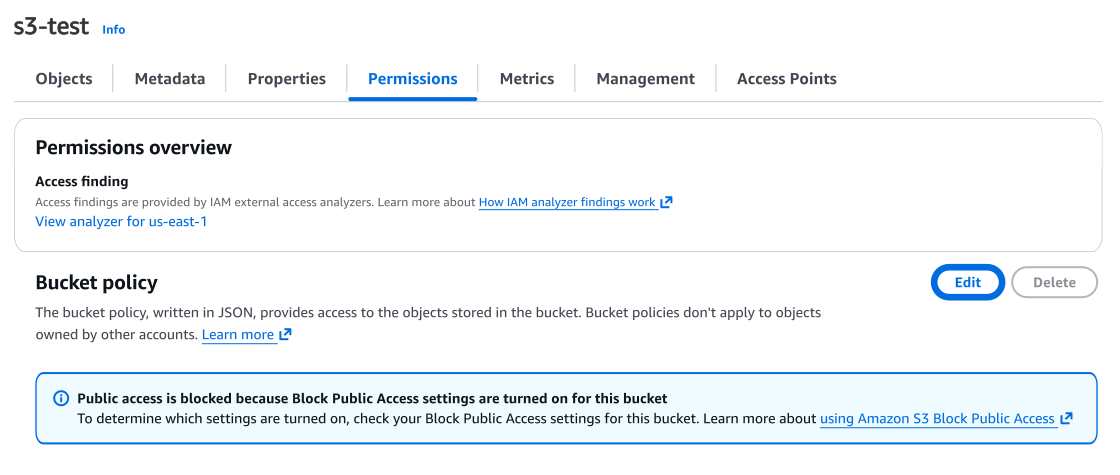
Figure 10 - The Edit policy button
Create the following bucket policy, setting the Principal to be the ARN you copied from the ACM:
{
  "Version": "2012-10-17",
  "Statement": [
    {
      "Sid": "AltinityReadAccess",
      "Effect": "Allow",
      "Principal": {
        "AWS": "arn:aws:iam::1234567890:root"
      },
      "Action": [
        "s3:GetBucketLocation",
        "s3:ListBucket",
        "s3:GetObject"
      ],
      "Resource": [
        "arn:aws:s3:::{BucketName}",
        "arn:aws:s3:::{BucketName}/*"
      ]
    }
  ]
}
In the Resource section, replace {BucketName} with the name of your S3 bucket. Be sure you have two entries as shown above: the ARN of the bucket as well as the ARN appended with /*, which gives Altinity access to everything the bucket contains.
Your screen should look like this:
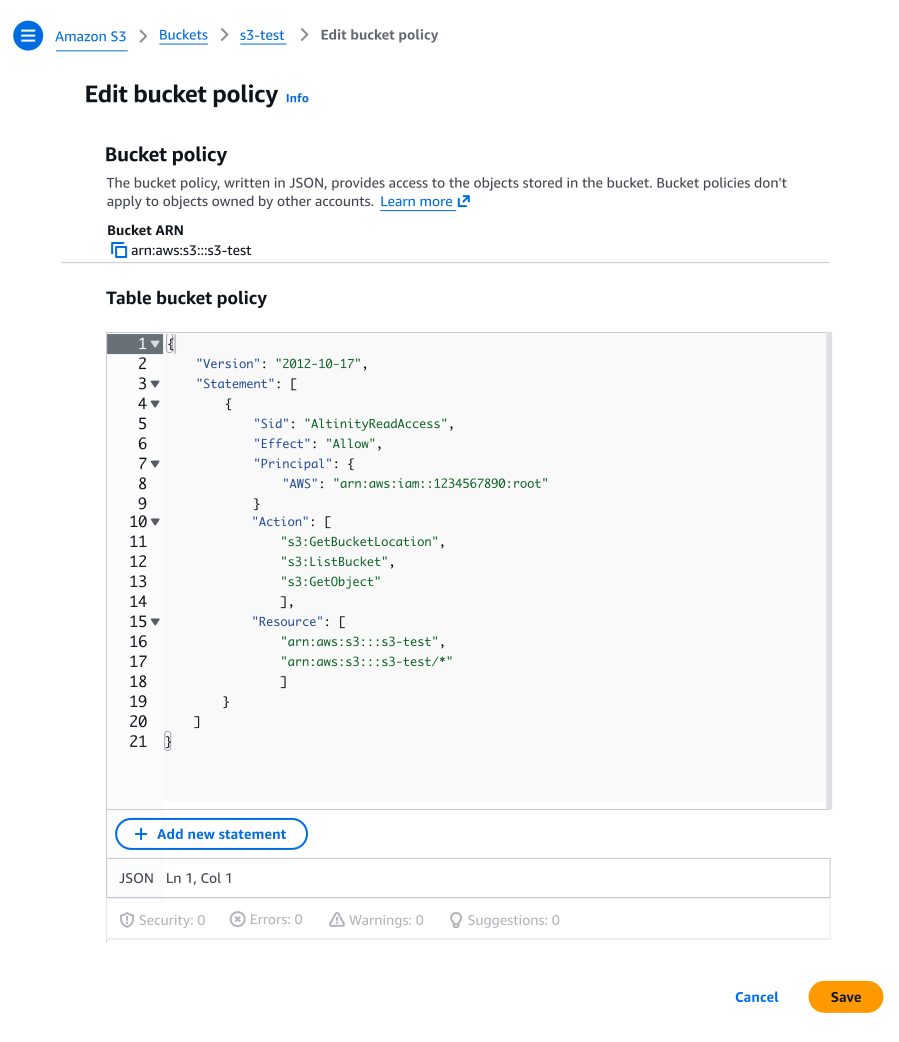
Figure 11 - The new bucket policy
Click Save to add the permissions Altinity needs to read data from your S3 bucket.
Creating an Iceberg catalog in an S3 Table bucket in your AWS account
Creating an Iceberg catalog in an S3 Table bucket is similar to using an S3 bucket, so we’ll just cover the differences here. To start, we’ll need the ARN of our S3 Table bucket. Go to the Table buckets list and click the  copy icon to copy the ARN:
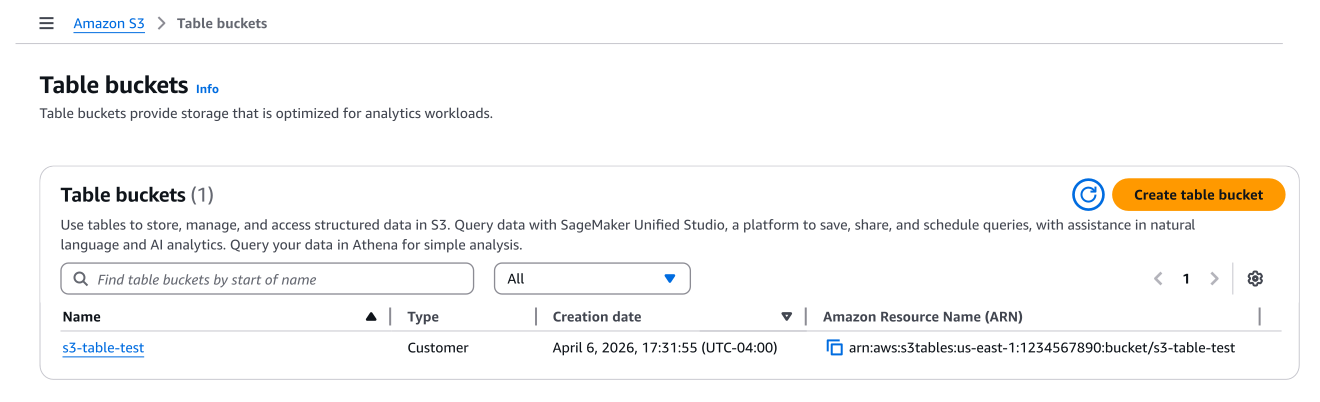
Figure 12 - The list of S3 table buckets
Now click the button to add a new catalog. Give your new catalog a name, then select S3_TABLE and Custom. Paste the ARN of your S3 table into the dialog:
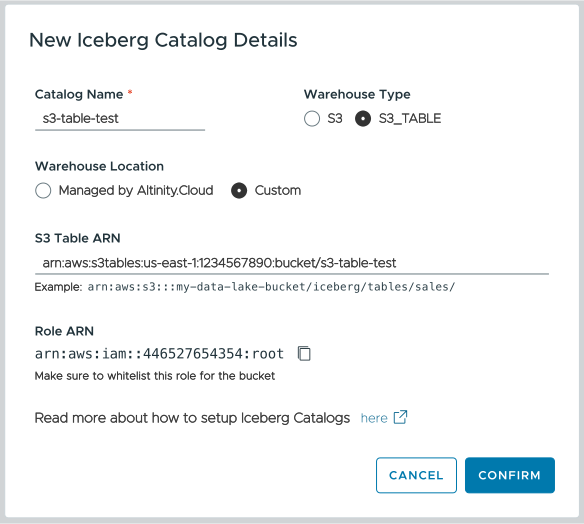
Figure 13 - An S3 table catalog in your AWS account
Once you’ve pasted in the ARN of your S3 Table bucket, click the copy icon to copy the Altinity ARN. Now go to the AWS console and create the following permissions document for your S3 table:
{
    "Version": "2012-10-17",
    "Statement": [
        {
            "Sid": "AltinityReadAccess",
            "Effect": "Allow",
            "Principal": {
                "AWS": "arn:aws:iam::1234567890:root"
            },
            "Action": [
                "s3tables:GetTableBucket",
                "s3tables:ListTableBuckets",
                "s3tables:GetTableData",
                "s3tables:GetTableMetadataLocation"
            ],
            "Resource": [
                "arn:aws:s3tables:{Region}:{Account}:bucket/{TableBucketName}",
                "arn:aws:s3tables:{Region}:{Account}:bucket/{TableBucketName}/*"
            ]
        }
    ]
}
In the Resource section, replace {Region} with the region where your S3 Table bucket is located, {Account} with your 12-digit AWS account number, and {TableBucketName} with the name of your S3 Table bucket. Be sure you have two entries as shown above: the ARN of the table bucket as well as the ARN appended with /*, which gives Altinity access to everything the table bucket contains.
The policy should look like this:
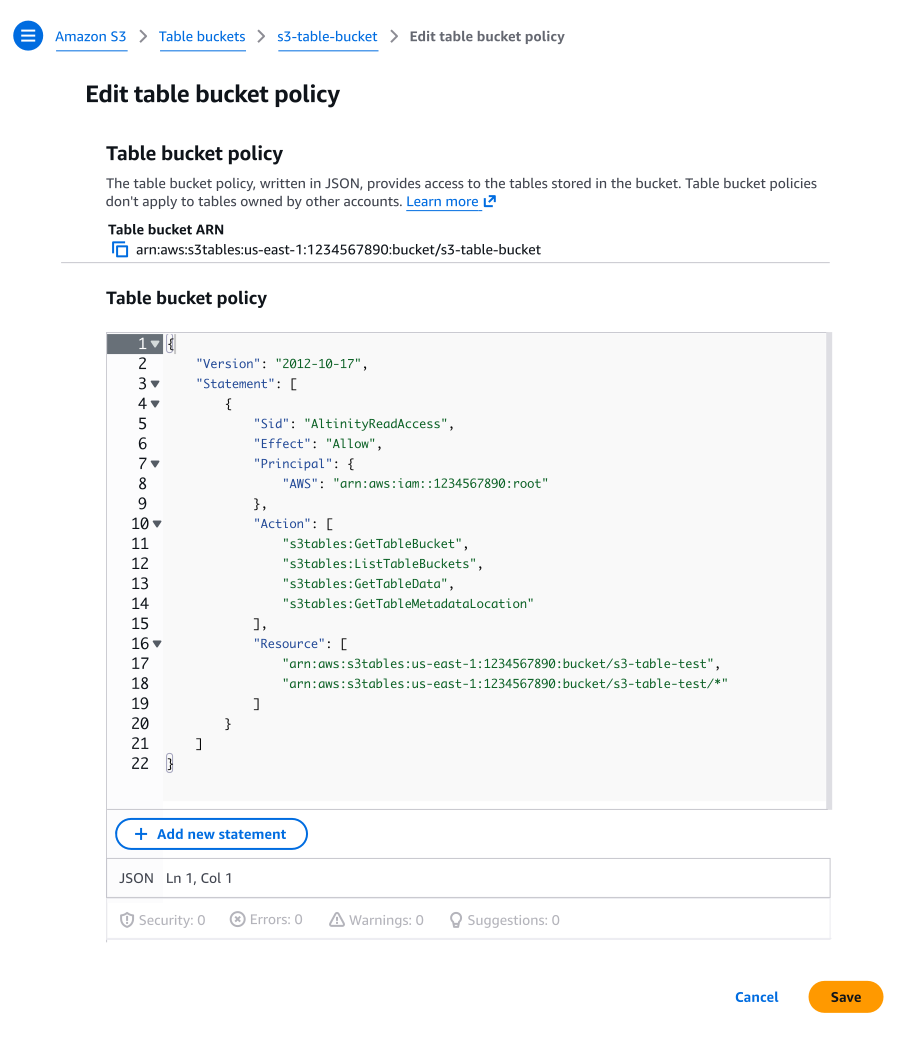
Figure 14 - The table bucket policy for an S3 table
Getting a catalog’s connection details
Click on the Catalogs menu to see a complete list of catalogs:
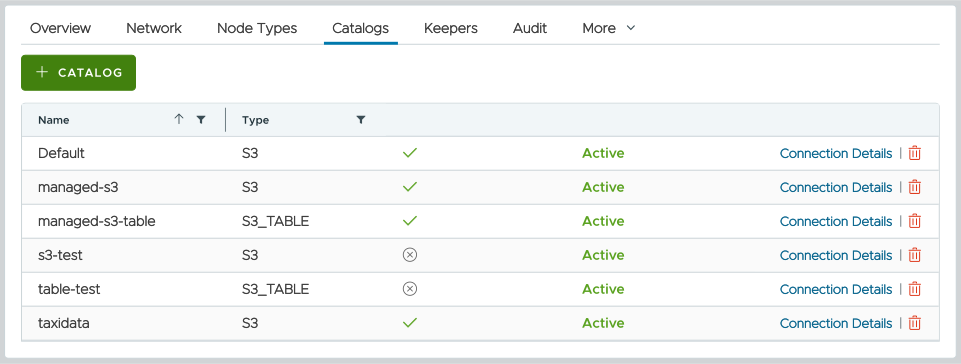
Figure 15 - The list of Iceberg catalogs in the environment
Catalogs with the  icon are managed by Altinity, while catalogs with the
  icon are in your AWS account. You can click the Connection Details link to see how to connect to a catalog:
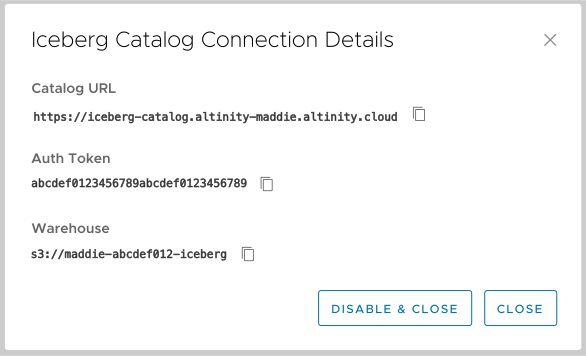
Figure 16 - Iceberg catalog details
The three pieces of information in Figure 16 are what you need to know to work with your Iceberg catalog. They are:
- The catalog URL. This is created for you.
- The bearer token for the authentication process. This is created for you.
- The address of your catalog. If you’re using an S3 bucket (Altinity-managed or in your AWS account), this is an
s3://URL as shown in Figure 16 above. The URL is created for you.
On the other hand, if you’re using an S3 table (Altinity-managed or in your AWS account), the address is the ARN of the S3 table you created, as shown in Figure 17:
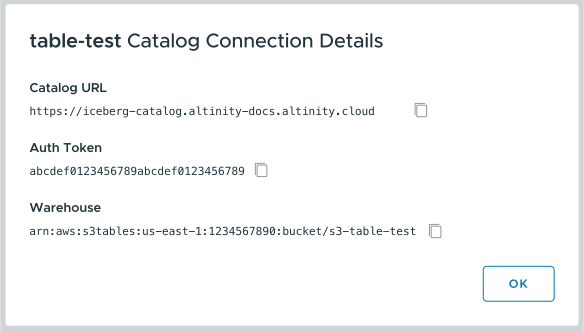
Figure 17 - The address for an S3 Table catalog is an ARN
We’ll use those values when we use the ice utility to insert Parquet data into our S3 bucket or S3 table. We’ll also use those values when we create a database with the DataLakeCatalog engine. That engine lets us query an Iceberg catalog as if it were any other ClickHouse database.
Using ice to insert Parquet data into your catalog
Altinity's ice utility is an open-source tool for working with Parquet files and Iceberg catalogs. We’ll use it outside the ACM to insert Parquet files into an Iceberg catalog. Follow the install instructions on the ice releases page, noting the Java 21+ requirement.
With ice installed, edit the .ice.yaml file as follows:
uri: https://iceberg-catalog.altinity-docs.altinity.cloud
bearerToken: abcdef1234567890abcdef1234567890
httpCacheDir: data/ice/http/cache
The values for uri and bearerToken come from Figure 16 (or 17, if you’re using an S3 Table bucket) above.
Now we’ll run ice insert to add a Parquet file to the Iceberg catalog. Make sure your AWS credentials are set; you won’t be able to update the AWS resources if they aren’t. We’ll use a publicly available Parquet file. Here’s the syntax:
ice insert btc.transactions -p s3://aws-public-blockchain/v1.0/btc/transactions/date=2026-04-03/part-00000-064d79ba-9c1e-456a-a56a-5ee2c0dde00a-c000.snappy.parquet
This command takes the Parquet file and adds it as a table named transactions in the btc namespace. If you look in the AWS console for the container, you’ll see the details:
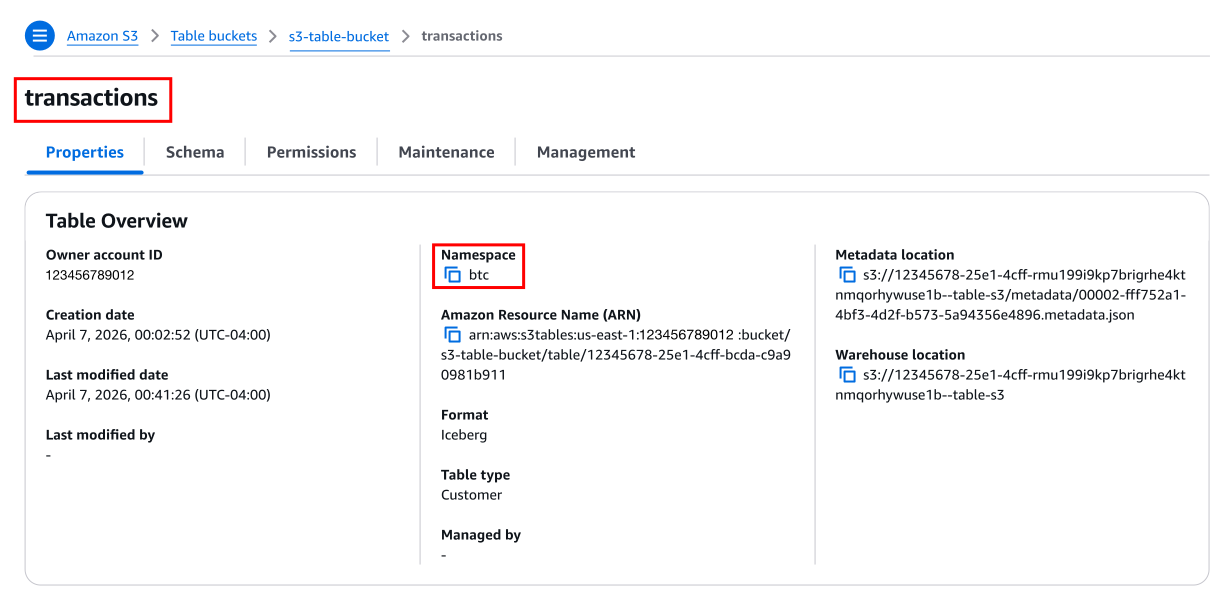
Figure 18 - The namespace for the transactions table
Our Parquet data is in the Iceberg catalog; now we need to create a database from it.
Creating a database from the Parquet data in your catalog
To work with the data in the Iceberg catalog, we’ll create a database with the DataLakeCatalog engine. This lets us query the Iceberg catalog just like any other ClickHouse database. Here’s the syntax:
CREATE DATABASE s3databasetest
ENGINE = DataLakeCatalog('https://iceberg-catalog.altinity-docs.altinity.cloud')
SETTINGS catalog_type = 'rest', auth_header = 'Authorization: Bearer abcdef1234567890abcdef1234567890', warehouse = 's3://altidocs-01234567-iceberg'
The DataLakeCatalog engine looks through the Iceberg catalog to find existing tables. In our case, we’ve created the btc.transactions table. Once the database is created, we can query the table. Here’s a simple example:
SELECT count() FROM s3databasetest.`btc.transactions`;
(Notice that we have to use ` backticks ` around the namespace and table name.) Sure enough, the DataLakeCatalog finds the data:
   ┌─count()─┐
1. │ 1142456 │ -- 1.14 million
   └─────────┘
Looking at the definition of the table,
SHOW CREATE TABLE s3databasetest.`btc.transactions` FORMAT TSVRaw;
The warehouse location from the AWS console is the parameter for the Iceberg table engine:
CREATE TABLE s3databasetest.`btc.transactions`
(
    `txid` Nullable(String),
    `hash` Nullable(String),
    `version` Nullable(Int64),
    `size` Nullable(Int64),
    `block_hash` Nullable(String),
    `block_number` Nullable(Int64),
    `index` Nullable(Int64),
    `virtual_size` Nullable(Int64),
    `lock_time` Nullable(Int64),
    `input_count` Nullable(Int64),
    `output_count` Nullable(Int64),
    `is_coinbase` Nullable(Bool),
    `output_value` Nullable(Float64),
    `outputs` Array(Tuple(address Nullable(String), index Nullable(Int64), required_signatures Nullable(Int64), script_asm Nullable(String), script_hex Nullable(String), type Nullable(String), value Nullable(Float64))),
    `block_timestamp` Nullable(DateTime64(6, 'UTC')),
    `date` Nullable(String),
    `last_modified` Nullable(DateTime64(6, 'UTC')),
    `fee` Nullable(Float64),
    `input_value` Nullable(Float64),
    `inputs` Array(Tuple(address Nullable(String), index Nullable(Int64), required_signatures Nullable(Int64), script_asm Nullable(String), script_hex Nullable(String), sequence Nullable(Int64), spent_output_index Nullable(Int64), spent_transaction_hash Nullable(String), txinwitness Array(Nullable(String)), type Nullable(String), value Nullable(Float64)))
)
    ENGINE = Iceberg('s3://altidocs-01234567-iceberg')
Congratulations! If you’ve come this far, you’ve got an Iceberg catalog with Parquet data, and you can query that data just like any other ClickHouse data source.
Deleting a catalog
You can delete a catalog by clicking the  icon. You’ll be asked to confirm your choice. If this is a catalog managed by Altinity, your data will be deleted along with the catalog:
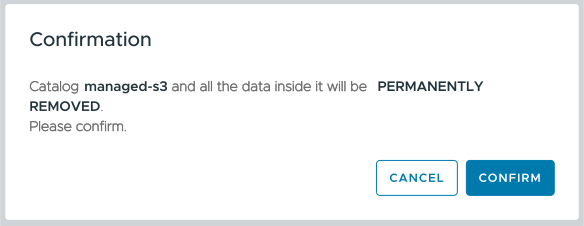
Figure 19 - Confirming catalog deletion for an Altinity-managed catalog
On the other hand, if the catalog is stored in your AWS account, the data will still be there. You just won’t be able to access it from ClickHouse:
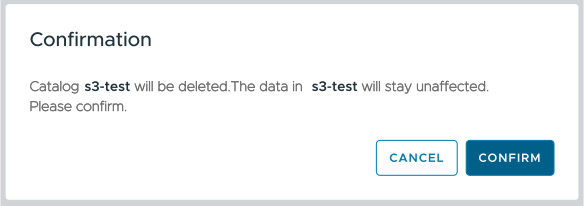
Figure 20 - Confirming catalog deletion for an unmanaged catalog
Enabling Iceberg catalogs for BYOK environments
NOTE: Currently we only support BYOK Iceberg catalogs in AWS environments.
Altinity doesn’t have permissions to create S3 buckets within your Kubernetes environment, so you’ll need to set those up and give us the details. Fortunately, we provide a Terraform script that you can use with your AWS credentials. Save the following text in a file named main.tf:
terraform {
  required_providers {
    aws = {
      source  = "hashicorp/aws"
      version = "~> 6.0"
    }
  }
}

provider "aws" {}

variable "eks_cluster_name" {
  type        = string
  description = "EKS cluster name"
}

variable "catalog_name" {
  type        = string
  description = "Iceberg Catalog name (empty = default)"
  default     = ""
  nullable    = false
}

variable "s3_bucket_prefix" {
  type    = string
  default = "iceberg"
}

variable "s3_bucket_name" {
  type    = string
  default = null
}

variable "s3_bucket_new" {
  type    = bool
  default = true
}

locals {
  catalog_qualifier = var.catalog_name != "" ? "-${var.catalog_name}" : ""
  tags = {}
}

data "aws_s3_bucket" "this" {
  count  = var.s3_bucket_new ? 0 : 1
  bucket = var.s3_bucket_name
}

resource "aws_s3_bucket" "this" {
  count         = var.s3_bucket_new ? 1 : 0
  bucket        = var.s3_bucket_name
  bucket_prefix = var.s3_bucket_name == null ? var.s3_bucket_prefix : null
  tags          = local.tags
  force_destroy = true
}

locals {
  s3_bucket_name = var.s3_bucket_new ? aws_s3_bucket.this[0].id : data.aws_s3_bucket.this[0].id
  s3_bucket_arn  = var.s3_bucket_new ? aws_s3_bucket.this[0].arn : data.aws_s3_bucket.this[0].arn
}

data "aws_eks_cluster" "current" {
  name = var.eks_cluster_name
}

data "aws_caller_identity" "current" {}

locals {
  oidc_provider = replace(data.aws_eks_cluster.current.identity.0.oidc.0.issuer, "https://", "")
  oidc_provider_id = split("/id/", local.oidc_provider)[1]
}

resource "aws_iam_role" "this" {
  name               = "ice-rest-catalog-${local.oidc_provider_id}${local.catalog_qualifier}"
  assume_role_policy = <<-EOF
{
  "Version": "2012-10-17",
  "Statement": [
    {
      "Effect": "Allow",
      "Principal": {
        "Federated": "arn:aws:iam::${data.aws_caller_identity.current.account_id}:oidc-provider/${local.oidc_provider}"
      },
      "Action": "sts:AssumeRoleWithWebIdentity",
      "Condition": {
        "StringEquals": {
          "${local.oidc_provider}:sub": "system:serviceaccount:altinity-cloud-managed-clickhouse:iceberg${local.catalog_qualifier}"
        }
      }
    }
  ]
}
  EOF
  tags               = local.tags
}

resource "aws_iam_role_policy" "this" {
  name   = "ice-rest-catalog-${local.oidc_provider_id}${local.catalog_qualifier}"
  role   = aws_iam_role.this.id
  policy = <<-EOF
{
    "Version": "2012-10-17",
    "Statement": [
        {
            "Action": [
                "s3:*"
            ],
            "Resource": [
                "${local.s3_bucket_arn}",
                "${local.s3_bucket_arn}/*"
            ],
            "Effect": "Allow"
        },
        {
            "Action": "sts:AssumeRole",
            "Resource": ["${aws_iam_role.rw.arn}", "${aws_iam_role.ro.arn}"],
            "Effect": "Allow"
        }
    ]
}
  EOF
}


resource "aws_iam_role" "rw" {
  name               = "ice-rest-catalog-rw-${local.oidc_provider_id}${local.catalog_qualifier}"
  assume_role_policy = <<-EOF
{
  "Version": "2012-10-17",
  "Statement": [{
    "Effect": "Allow",
    "Principal": {
      "AWS": "${aws_iam_role.this.arn}"
    },
    "Action": "sts:AssumeRole"
  }]
}
  EOF
  tags               = local.tags
}

resource "aws_iam_role_policy" "rw" {
  name   = "ice-rest-catalog-rw-${local.oidc_provider_id}${local.catalog_qualifier}"
  role   = aws_iam_role.rw.id
  policy = <<-EOF
{
    "Version": "2012-10-17",
    "Statement": [
        {
            "Action": [
                "s3:Get*",
                "s3:List*",
                "s3:Describe*",
                "s3:PutObject",
                "s3:PutObject*",
                "s3:DeleteObject",
                "s3:DeleteObject*",
                "s3:AbortMultipartUpload"
            ],
            "Resource": [
                "${local.s3_bucket_arn}",
                "${local.s3_bucket_arn}/*"
            ],
            "Effect": "Allow"
        }
    ]
}
  EOF
}

resource "aws_iam_role" "ro" {
  name               = "ice-rest-catalog-ro-${local.oidc_provider_id}${local.catalog_qualifier}"
  assume_role_policy = <<-EOF
{
  "Version": "2012-10-17",
  "Statement": [{
    "Effect": "Allow",
    "Principal": {
      "AWS": "${aws_iam_role.this.arn}"
    },
    "Action": "sts:AssumeRole"
  }]
}
  EOF
  tags               = local.tags
}

resource "aws_iam_role_policy" "ro" {
  name   = "ice-rest-catalog-ro-${local.oidc_provider_id}${local.catalog_qualifier}"
  role   = aws_iam_role.ro.id
  policy = <<-EOF
{
    "Version": "2012-10-17",
    "Statement": [
        {
            "Action": [
                "s3:Get*",
                "s3:List*",
                "s3:Describe*"
            ],
            "Resource": [
                "${local.s3_bucket_arn}",
                "${local.s3_bucket_arn}/*"
            ],
            "Effect": "Allow"
        }
    ]
}
  EOF
}

output "s3_bucket_name" {
  value = local.s3_bucket_name
}

output "iam_role_arn" {
  value = aws_iam_role.this.arn
}

output "iam_role_rw_arn" {
  value = aws_iam_role.rw.arn
}

output "iam_role_ro_arn" {
  value = aws_iam_role.ro.arn
}

output "domain" {
  value = "iceberg-catalog${local.catalog_qualifier}"
}
Running the script is simple:
- Define your AWS credentials in the environment variables
AWS_ACCESS_KEY_ID,AWS_SECRET_ACCESS_KEY, andAWS_SESSION_TOKEN. - Terraform will create the S3 buckets in your default AWS region. Define the variables
AWS_DEFAULT_REGIONandAWS_REGIONwith the correct region (us-east-1, for example) to make sure your buckets are created where you want them. - Run
terraform initto download the dependencies for your Terraform script. - Run
terraform apply -var eks_cluster_name=my-clusterto specify the name of your EKS cluster and create the S3 resources you’ll use for your Iceberg catalog.
When the Terraform script is done, it will output five variables:
Apply complete! Resources: 7 added, 0 changed, 0 destroyed.

Outputs:

domain = "iceberg-catalog"
iam_role_arn = "arn:aws:iam::123456789012:role/ice-rest-catalog-1234567890ABCDEF1234567890ABCDEF"
iam_role_ro_arn = "arn:aws:iam::123456789012:role/ice-rest-catalog-ro-1234567890ABCDEF1234567890ABCDEF"
iam_role_rw_arn = "arn:aws:iam::123456789012:role/ice-rest-catalog-rw-1234567890ABCDEF1234567890ABCDEF"
s3_bucket_name = "iceberg20251030123456789012345678"
Now you’ll need to contact Altinity support with the S3 bucket name. They’ll complete the setup for you. When that’s done, you can go to the Catalogs menu as shown in Figure 2 above.