Altinity Access to ClickHouse®
Introduction
Altinity Access settings allow Altinity.Cloud users to limit the level of access Altinity personnel have to customer ClickHouse® data or administrative operations. Altinity.Cloud provides two types of limits:
- Data Access - Control the ability of Altinity personnel to view or change data in ClickHouse tables.
- Management Access - Control ability to change cluster configuration or perform administrative actions.
If you restrict access to data or management functions you may choose to lift them from time to time to allow Altinity support to diagnose problems or perform operations on your behalf. You can apply the restrictions again afterward.
Viewing and Changing Altinity Access Settings
Access the Cluster Dashboard view of any cluster. The ACCESS button appears in the upper right-hand side of the dashboard view.
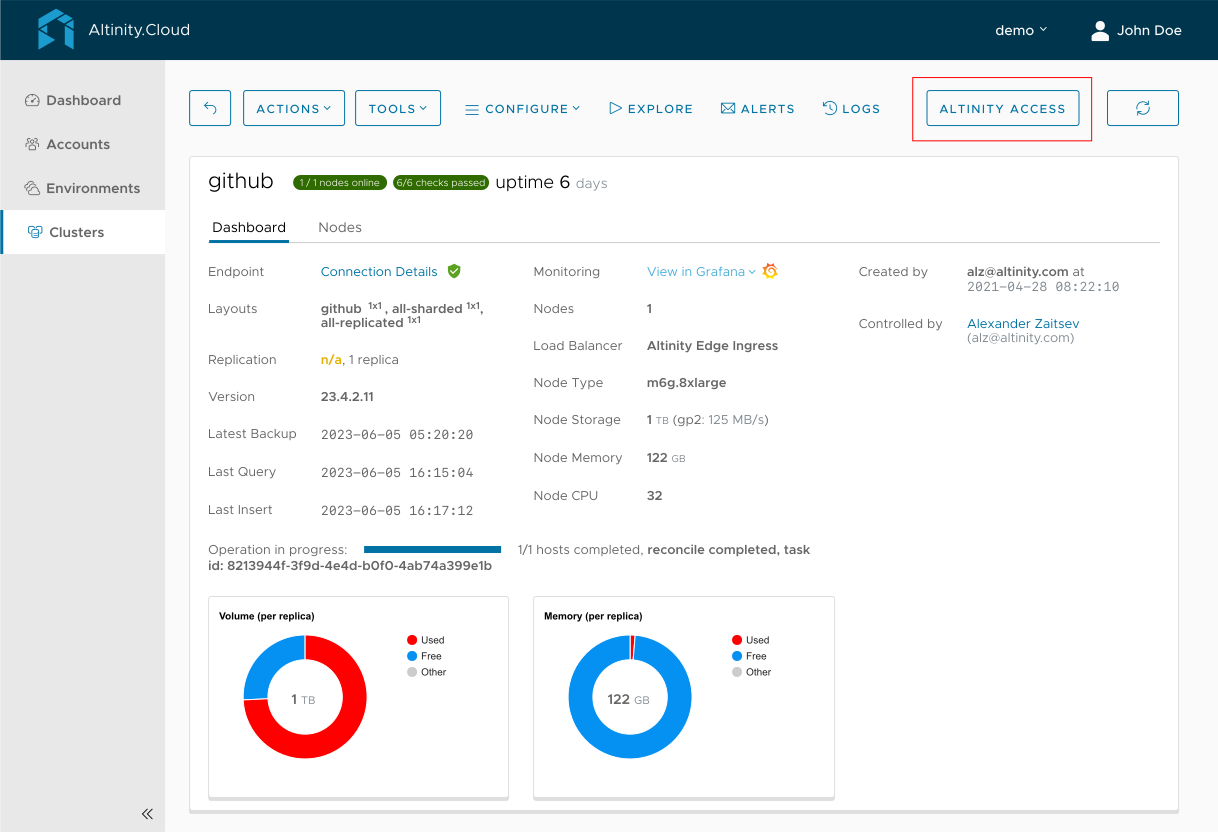
Figure 1 - The ACCESS Button in the Cluster Dashboard
Button Colors
The button color indicates Altinity personnel’s access level to your ClickHouse clusters and data.

No Access - Altinity personnel cannot use the ACM Query Browser or Schema Browser. They cannot look at data or schema.

System Access - Altinity personnel can use the ACM Query browser to query system tables and look at table definitions in the Schema Browser, but they cannot look at data. This setting provides a good balance between protecting data and providing the access required for quick support from Altinity. This is the default value.

Read-Only Access - In addition to the above, Altinity personnel can use the ACM Query Browser to run SELECT statements that read data from any table.

Full Access - In addition to the above, Altinity personnel can use the ACM Query Browser to run SQL statements that alter data.
Modifying Altinity access settings
Press the ACCESS button, whatever color it may be, to manage access settings for Altinity personnel.
Data Access Level settings
The four data access levels are at the top of the panel:
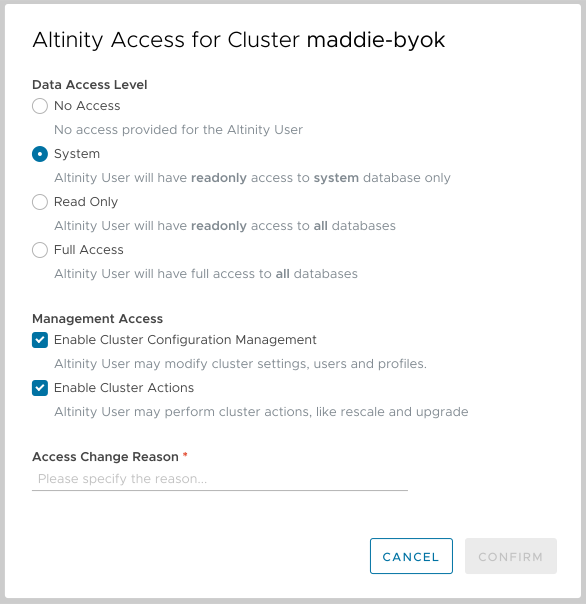
Figure 2 - Altinity Access Dialog
Select the new access level and press CONFIRM to save it. The CONFIRM button is disabled until you enter a reason for the change. Changing settings requires an account with EnvUser role or higher.
Management Access settings
You may similarly enable or disable management access using the check boxes in the middle of the panel.
Enable Cluster Configuration Management
Checking this box allows Altinity personnel to perform any of the following cluster configuration operations:
- Changing cluster configuration settings
- Changing users or profiles
- Setting connection configuration
- Altering backup settings
- Setting activity schedules
- Setting alerts
The above actions can cause your server to restart, alter user passwords, or change the information that you receive from Altinity.Cloud about your clusters. If the box is unchecked, only you can make these changes.
Enable Cluster Actions
Checking this box allows Altinity staff to perform any of the following cluster administration operations:
- Creating new clusters
- Rescaling clusters
- Upgrading clusters
- Restarting clusters
The above actions may cause your server to restart, behave differently for applications, or affect operating costs. If the box is unchecked, only you can make these changes.
Get Temporary Credentials
The  button lets you request temporary credentials that you can give to Altinity support. If you don’t have the appropriate access, you’ll see this message:

Figure 3 - Access denied message