Enabling the MCP Server
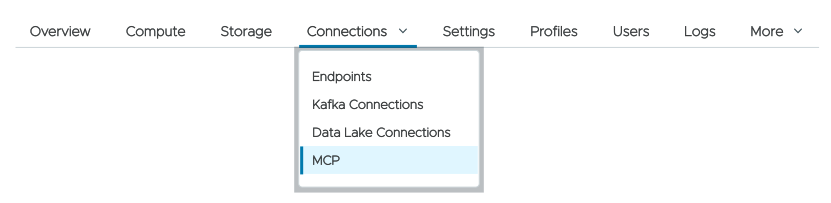
You need to enable MCP support for your environment before you can enable it for any of your clusters. We’ll cover enabling the environment here; complete details on using the MCP server are covered in the Cluster configuration section.
The MCP tab lets you configure MCP access for your environment:
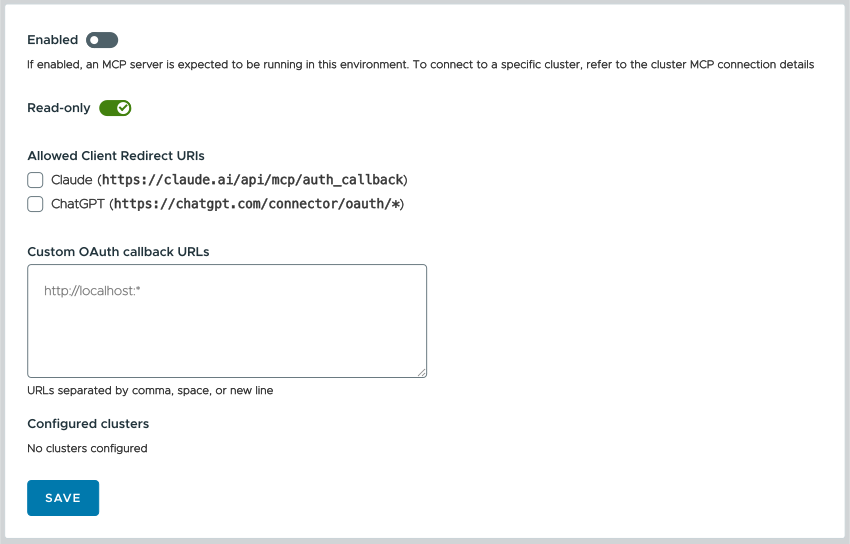
Figure 1 - The MCP configuration dialog
Here are the details of the fields in the dialog above:
- Enabled - Means what you’d think it does. Be aware that changing the status of the MCP server may take a few minutes.
- Read-only - The default. You can modify this to give an LLM more access, but proceed with caution.
- Allowed Client Redirect URLs - The two URLs defined here are specific to Claude and ChatGPT. If you want users of those LLMs to have access to your data, check the appropriate boxes.
- Custom OAuth callback URLs - A list of any URLs that you need to configure for other LLMs. The custom URLs in Figure 1 above are an alternate URL for Claude (they’ve suggested they may move to
claude.comat some point), and three URLs for Cursor. Notice that one of the callback URLs is onlocalhost; that’s used by the desktop Cursor application.
A word about redirect / callback URLs
The redirect / callback URLs handle OAuth access tokens for the MCP server, and they’re worth a little discussion here. They are used to tell an Identity Provider (IdP) where to redirect the LLM after a user logs in. There are four things at work here: the LLM, the IdP, the MCP server, and your ClickHouse cluster. Here’s how they work together:
- The LLM sends the user to the IdP (Google, Okta, Auth0, etc.) to log in. The redirect URL is passed along as an HTTP parameter, something like
https://idp.example.com/authorize?redirect_uri=https://claude.ai/api/mcp/auth_callback.
The redirect URL must be defined in the MCP server’s configuration. We don’t want the IdP generating tokens and then sending them off to a URL we’ve never heard of. - The user logs in at the IdP as
maddie@example.com. - The IdP sends the LLM to the redirect URL. The redirect URL includes a one-time authorization code from the IdP, something like
https://claude.ai/api/mcp/auth_callback?code=123. - The LLM calls the IdP with the one-time code. The IdP returns an OAuth access token for
maddie@example.com. - Anytime the LLM accesses the MCP server, it sends the access token as a
Bearertoken. The access token only gives the LLM access to the MCP server; it can’t be used to access ClickHouse. - The MCP server sends the LLM’s request to ClickHouse. If the MCP server needs credentials to access ClickHouse, those are passed along with the request, but they only pass between the MCP server and ClickHouse. The LLM doesn’t know anything about the ClickHouse credentials. Assuming there’s a user named
maddie@example.com, ClickHouse processes the request from the MCP server. (Request processing is still subject to the ClickHouse access controls defined for that user, of course.)
- Configured clusters - All the MCP-enabled clusters in your environment will be listed here. In Figure 1 above, there aren’t any configured clusters yet.
Make your changes and click the  button. You’ll get a brief message that the MCP configuration has changed:

Figure 2 - Configuration changed message