Configuring Profiles

Profiles allow you to give a name to a group of user settings, then easily apply those settings to users of your ClickHouse® cluster.
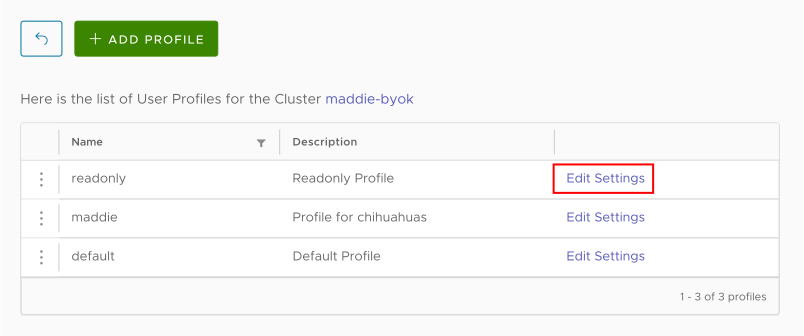
Figure 1 - The Profiles dialog
Creating or editing a profile’s name and description
Clicking the  button takes you to the Profile Details dialog:
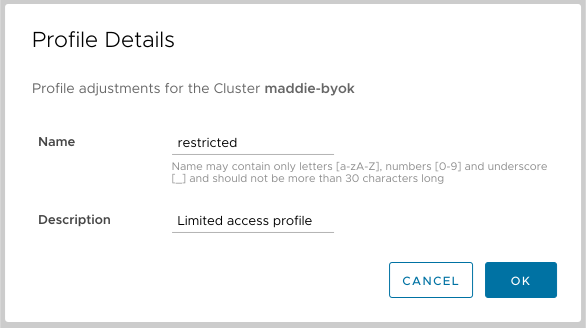
Figure 2 - The Profile Details dialog
Give the new profile a name and description, then click OK to create the new profile.
From the profile list shown in Figure 1 you can also click the  icon next to a profile name, then select Edit to change its name and description:
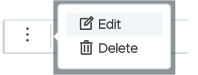
Figure 3 - The Edit Profile menu
This takes you to the dialog shown in Figure 2 above.
Editing a profile’s settings
To edit the actual settings in the profile, click the Edit Settings link in the right side of the list of profiles shown in Figure 1. You’ll see a list of everything in this profile:
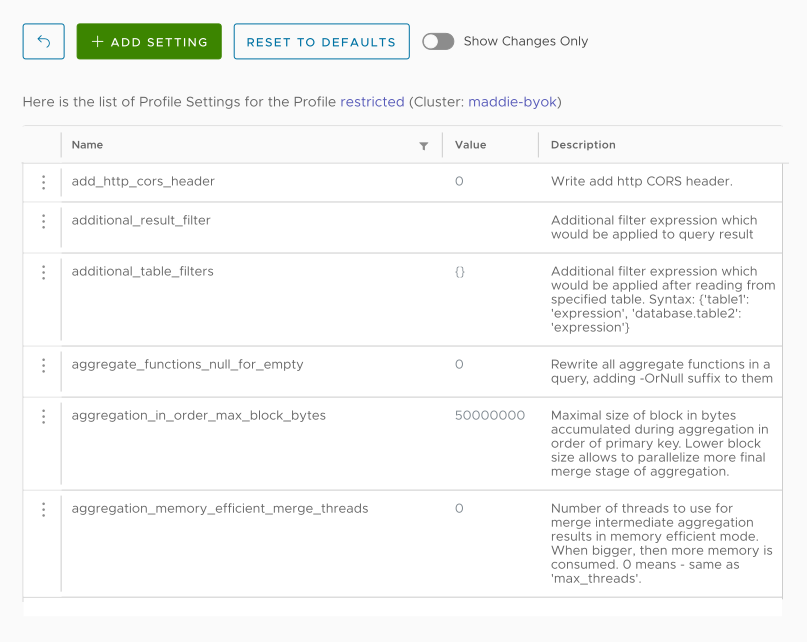
Figure 4 - The list of profile settings
There are currently more than 1500 settings. You can click the  icon to enter a search term:
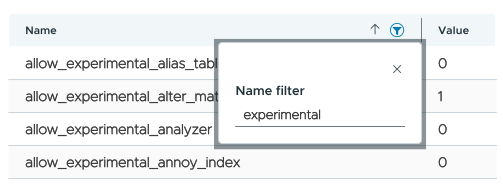
Figure 5 - Filtering the list of settings
Here we’re filtering the list of settings to only those with experimental in their names. You can also click the Name title to list parameters in ascending or descending order.
Clicking the  button takes you to the Profile Setting Details dialog:
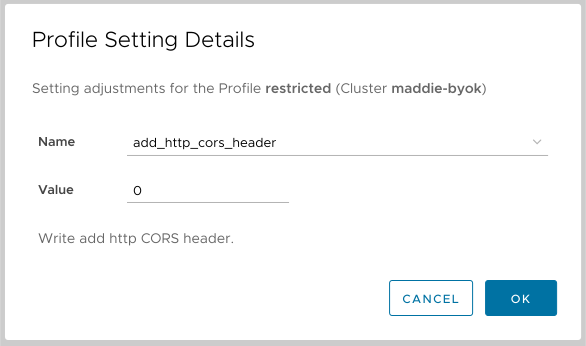
Figure 6 - The Profile Setting Details dialog
Clicking the  icon displays a drop-down menu that lists all the settings. You can also start typing the name of a setting to avoid scrolling through the entire list. Selecting any setting in the list updates the dialog with a hint for that setting.
To change an existing setting, click the icon, then select Edit from the menu:
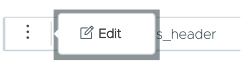
Figure 7 - Editing an existing setting
This takes you to the dialog shown in Figure 6 above.
Selecting which profile to edit
You can switch to another profile while in edit mode. Clicking the  button displays a dropdown list of all your profiles:
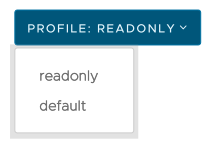
Figure 8 - Selecting a profile to edit
Other editing tasks
You can also click the  slider to see only the settings you’ve changed or click the
  button to reset all settings to their defaults. If you click that, you’ll be asked to confirm your choice:
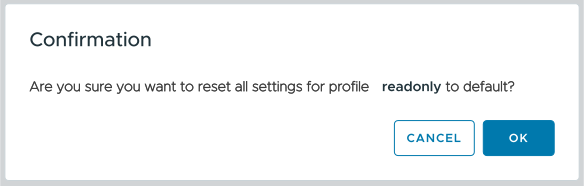
Figure 9 - Configuring profile reset
Deleting a profile
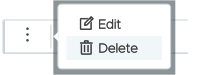
From the profiles list you can also click the icon and select Delete from the menu:
You’ll be asked to confirm:
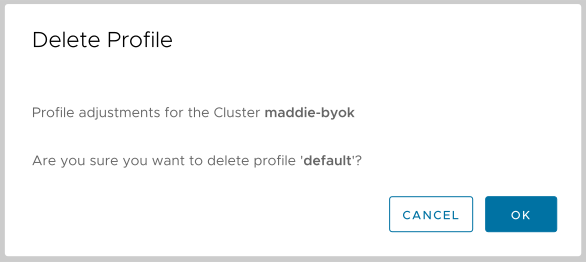
Figure 10 - The Delete Profile dialog