Using Content-Addressed Storage (CAS)
Content-addressed storage lets every replica of a MergeTree table share a single copy of its data. First shipped in Antalya 26.6.2.20001, content-addressed storage is an experimental feature that will be GA-level by the end of 2026.
How CAS stores data
Managing a ReplicatedMergeTree on object storage has historically had two unattractive options.
- Plain replication stores a byte-identical copy of every part on every replica, so storage costs go up every time another replica is added.
- Zero-copy replication stores a single copy of the parts, but it comes with substantial overhead. The complications of zero-copy replication led the upstream ClickHouse team to deprecate it in 2025 (see ClickHouse issue #82250).
Content-addressed storage takes the goal of a single copy of data and simplifies the architecture: every MergeTree part file is stored once, keyed by the hash of its content, in the object-storage pool itself. When adding a new replica, the replica’s data is already on the CAS disk. The hash of each part will match objects already on the CAS disk, so storage costs basically stay flat. The CAS disk does some housekeeping to track how many replicas are using a given part, but that takes very little storage.
(BTW, git is a content-addressable filesystem; see this discussion of git internals for a look at the details.)
To be clear: when we say “single copy of data,” we mean a single object stored in S3. The way S3 works, though, there are multiple copies of that object scattered across at least three availability zones. Basically what we’re doing is letting AWS handle reliability for us, and that’s included in the cost of S3.
Because a CAS disk is hosted in object storage, it has the same characteristics as an S3 disk. Writes are expensive, so any design built on frequent writes will be inefficient. Every insert creates a new part, and a new part may consist of many files. Merges read parts from S3, write a merged part back to S3, then delete the original parts. Those all increase bandwidth and latency; under heavy loads, S3 can also throttle the system with 503 Slow Down errors. A CAS disk works best as a cold tier. We’ll look at using TTL and storage policies to use high-performance storage for new data and CAS disks for older data.
For a detailed discussion of the CAS architecture, including how garbage collection works and approaches to shared storage that ClickHouse no longer uses, see Alexander Zaitsev's post Introducing CAS: Drop-in Compute-Storage Separation for ClickHouse MergeTree Tables on the Altinity blog.
We’ll take a look at how to create a CAS disk, how to put data on it, how to use CAS disks with TTL, and how to do garbage collection.
Defining a CAS disk
We’ll go through a two-part process to define a CAS disk:
- Create object storage in the ACM. That creates a ClickHouse S3 disk, but it first creates an S3 bucket.
- Create a CAS disk inside the S3 bucket created for the object storage volume. We’ll get the URL of the bucket from the definition of the S3 disk.
This will be a one-step process in a future version of the ACM.
Adding Object storage
To add Object storage to your cluster, go to the Storage menu on the main cluster view:

Figure 1 - The Storage menu
Click the  button. You’ll see this dialog:
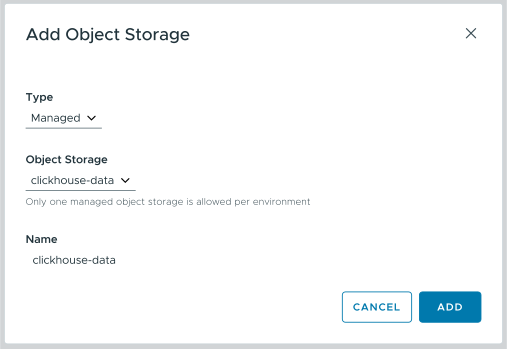
Figure 2 - The Add Object Storage dialog
Make sure Managed storage is selected and click ADD; an S3 disk is created for you.
Creating a CAS disk in an S3 bucket
The ACM created an S3 bucket as part of allocating object storage. We’ll create our CAS disk inside that bucket. To do that, we’ll need the URL of the bucket. Go to the Settings menu on the main cluster view:
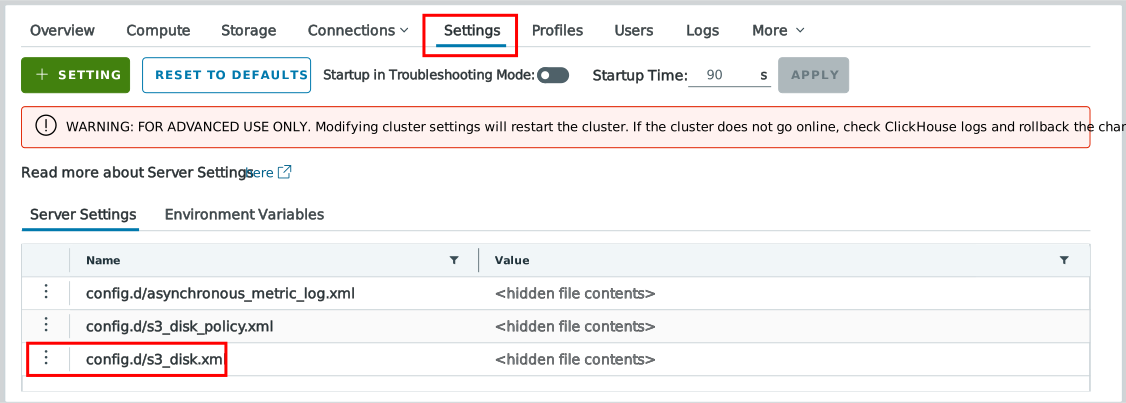
Figure 3 - Finding the setting file for the S3 disk
Click the  icon next to
 config.d/s3_disk.xml, then click Edit to see the XML settings. There will be an <endpoint> element that contains the URL of the S3 bucket:
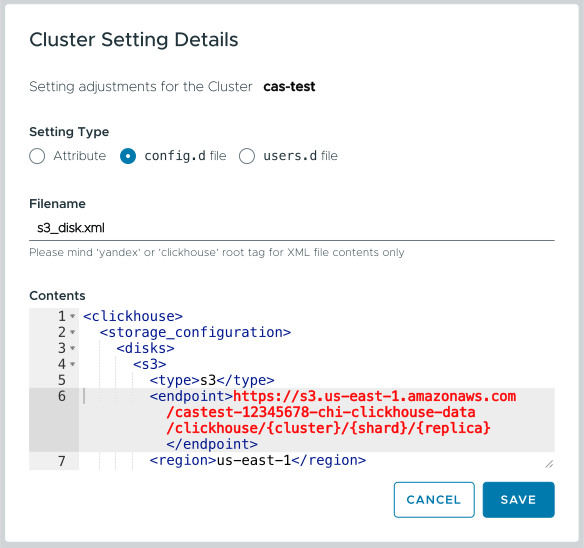
Figure 4 - The URL of the S3 bucket inside the s3_disk.xml file
Copy the URL. Click CANCEL, then click the  button shown in Figure 3 above to create a new setting. Create a new XML file named
 cas_disk.xml in config.d:
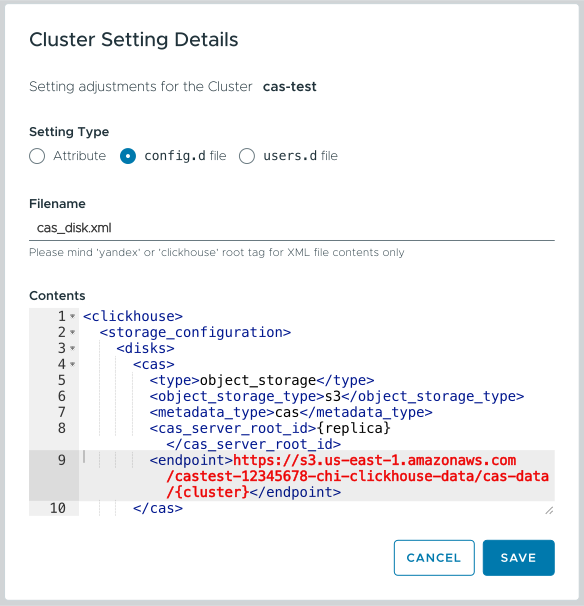
Figure 5 - The CAS settings dialog
Paste the following XML into the dialog. As shown in Figure 5 above, the <endpoint> element is the URL of the bucket through the /castest-12345678-chi-clickhouse-data/ segment, followed by a unique folder name (we’re using cas-data here) and /{cluster}:
<clickhouse>
  <storage_configuration>
    <disks>
      <cas>
        <type>object_storage</type>
        <object_storage_type>s3</object_storage_type>
        <metadata_type>cas</metadata_type>
        <cas_server_root_id>{replica}</cas_server_root_id>
        <endpoint>https://s3.us-east-1.amazonaws.com/castest-12345678-chi-clickhouse-data/cas-data/{cluster}</endpoint>
      </cas>
      <cas_cache>
        <type>cache</type>
        <disk>cas</disk>
        <path>cas_cache/</path>
        <max_size>5Gi</max_size>
      </cas_cache>
    </disks>
    <policies>
      <cas>
        <volumes>
          <main>
            <disk>cas_cache</disk>
          </main>
        </volumes>
      </cas>
    </policies>
  </storage_configuration>
</clickhouse>
Click SAVE to store the new setting. That creates a new CAS disk. Be aware that may take a few minutes as your ClickHouse nodes restart. When everything is ready, the CAS disk and its cache will show up in the list of volumes on the Storage dialog:
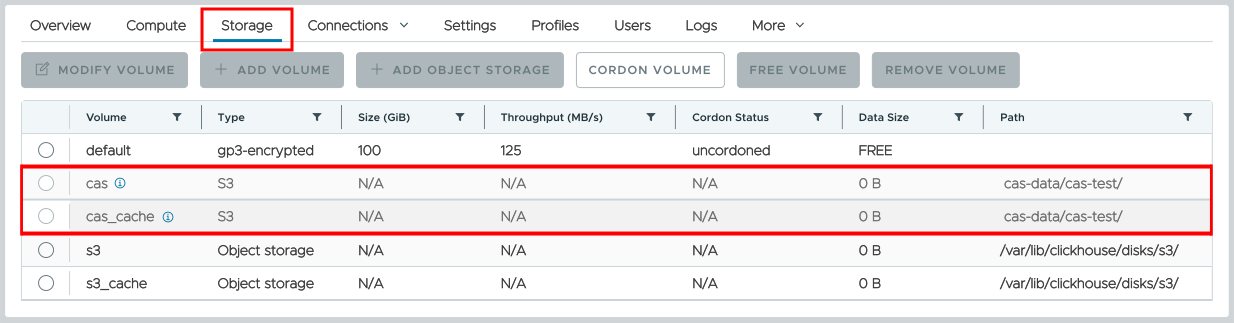
Figure 6 - The CAS disk and its cache in the list of volumes
In addition, if you have administrator access to your AWS account, you can look at the bucket originally created by the ACM:
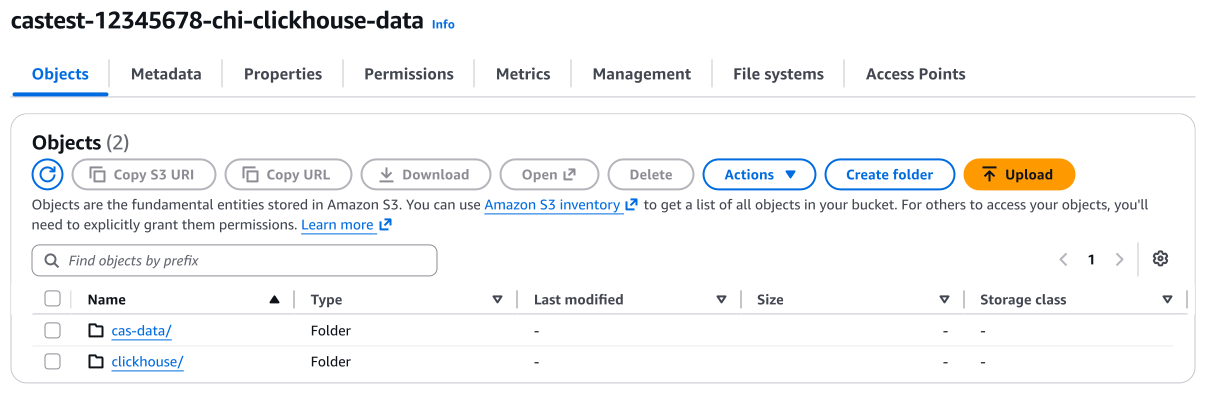
Figure 7 - The top-level folders in the S3 bucket
In Figure 7 we can see two folders: clickhouse, which holds whatever data we write to the S3 disk we created earlier, and cas-data, which holds whatever we write to our newly created CAS disk.
Working with a CAS disk
At this point we’ve got everything set up. We used the ACM’s Object storage features to create an S3 bucket, then we created a CAS disk inside the bucket. Now let’s create a database on the CAS disk. First, let’s confirm that our CAS storage exists:
SELECT
    hostName(),
    name
FROM clusterAllReplicas('{cluster}', system.disks)
WHERE name = 'cas'
We’ve got a CAS disk on each replica in our cluster:
   ┌─hostName()──────────────────┬─name─┐
1. │ chi-cas-test-cas-test-0-1-0 │ cas  │
2. │ chi-cas-test-cas-test-0-0-0 │ cas  │
   └─────────────────────────────┴──────┘
The disk exists, so let’s create a table on it:
CREATE TABLE events ON CLUSTER '{cluster}'
(
    id       UInt64,
    ts       DateTime,
    user_id  UInt32,
    amount   Decimal(10, 2),
    category LowCardinality(String)
    )
    ENGINE = ReplicatedMergeTree
    PARTITION BY toYYYYMM(ts)
    ORDER BY (ts, id)
    SETTINGS storage_policy = 'cas', old_parts_lifetime = 10;
The storage_policy tells Antalya to store our data on a CAS disk, and old_parts_lifetime tells it to start garbage collection after 10 seconds. (More on garbage collection in a minute.) We’ll get confirmation that our table has been created on both replicas in our cluster:
chi-cas-test-cas-test-0-1	9000	0		1	1
chi-cas-test-cas-test-0-0	9000	0		0	0
Our table is set up, so let’s give it some data:
INSERT INTO events
SELECT number,
       toDateTime('2026-01-01 00:00:00') + (number % 31536000),
       number % 100000,
       (number % 10000) / 100,
       ['books', 'games', 'tools', 'food'][number % 4 + 1]
FROM numbers(10000000);

OPTIMIZE TABLE events ON CLUSTER '{cluster}' FINAL;
All is well:
chi-cas-test-cas-test-0-0	9000	0		1	0
chi-cas-test-cas-test-0-1	9000	0		0	0
We’ve got 10 million records of uninteresting data:
SELECT count() FROM events;
SELECT * FROM events LIMIT 5;
   ┌──count()─┐
1. │ 10000000 │ -- 10.00 million
   └──────────┘

   ┌─id─┬──────────────────ts─┬─user_id─┬─amount─┬─category─┐
1. │  0 │ 2026-01-01 00:00:00 │       0 │      0 │ books    │
2. │  1 │ 2026-01-01 00:00:01 │       1 │   0.01 │ games    │
3. │  2 │ 2026-01-01 00:00:02 │       2 │   0.02 │ tools    │
4. │  3 │ 2026-01-01 00:00:03 │       3 │   0.03 │ food     │
5. │  4 │ 2026-01-01 00:00:04 │       4 │   0.04 │ books    │
   └────┴─────────────────────┴─────────┴────────┴──────────┘
Let’s ask ClickHouse how much data we’re using:
SELECT hostName() AS replica, count() AS rows,
       formatReadableSize(sum(bytes_on_disk)) AS reported_size
FROM clusterAllReplicas('{cluster}', system.parts)
WHERE active AND table = 'events'
GROUP BY replica;
We’ve got the same amount of storage on each replica, as you’d expect:
   ┌─replica─────────────────────┬─rows─┬─reported_size─┐
1. │ chi-cas-test-cas-test-0-1-0 │    6 │ 152.74 MiB    │
2. │ chi-cas-test-cas-test-0-2-0 │    6 │ 152.74 MiB    │
   └─────────────────────────────┴──────┴───────────────┘
So ClickHouse reports 152.74 MiB for each database. But this is CAS, so there should just be one copy of the data, right? Let’s use the AWS command-line tools to take a look at the size of the data in the bucket:
aws s3 ls s3://castest-12345678-chi-clickhouse-data/cas-data/cas-test \
  --recursive --summarize --human-readable
Total Objects: 344
   Total Size: 404.9 MiB
Wait, what? We should have one copy of our data, right? The total storage
should be roughly 152 MiB as shown above. Our storage usage will be much lower soon, but for now, we’ve got a copy of the data written to each replica and some overhead as Antalya creates new parts to merge everything. Worry not; in a few minutes we’ll have a number in line with what we expect:
Total Objects: 185
   Total Size: 156.0 MiB
That’s more like it! We’ve got a table stored in two replicas, but because CAS stores data based on the hash of its contents, we’ve only got one copy because the data in the two replicas is identical.
Let’s compare a CAS disk with ordinary storage. We’ll create the same table, only it’ll be on an S3 disk instead of CAS:
CREATE TABLE events_s3 ON CLUSTER '{cluster}'
(
    id       UInt64,
    ts       DateTime,
    user_id  UInt32,
    amount   Decimal(10, 2),
    category LowCardinality(String)
)
ENGINE = ReplicatedMergeTree
PARTITION BY toYYYYMM(ts)
ORDER BY (ts, id)
SETTINGS disk = 's3';
Now let’s load the table with the same data we put into our CAS disk:
INSERT INTO events_s3
SELECT number,
       toDateTime('2026-01-01 00:00:00') + (number % 31536000),
       number % 100000,
       (number % 10000) / 100,
       ['books', 'games', 'tools', 'food'][number % 4 + 1]
FROM numbers(10000000);

OPTIMIZE TABLE events_s3 ON CLUSTER '{cluster}' FINAL;
Asking ClickHouse how much storage we’re using is what you’d expect:
SELECT hostName() AS replica, count() AS rows,
       formatReadableSize(sum(bytes_on_disk)) AS reported_size
FROM clusterAllReplicas('{cluster}', system.parts)
WHERE active AND table = 'events_s3'
GROUP BY replica;
   ┌─replica─────────────────────┬─rows─┬─reported_size─┐
1. │ chi-cas-test-cas-test-0-1-0 │   12 │ 151.01 MiB    │
2. │ chi-cas-test-cas-test-0-0-0 │   12 │ 151.01 MiB    │
   └─────────────────────────────┴──────┴───────────────┘
But how is the data stored in S3? Once OPTIMIZE FINAL is complete, the S3 table uses roughly twice as much storage:
aws s3 ls s3://castest-12345678-chi-clickhouse-data/clickhouse/cas-test/ \
  --recursive --summarize --human-readable
Total Objects: 44
   Total Size: 303.1 MiB
(Total size was over 800 MiB before OPTIMIZE FINAL completed, btw.)
Let’s put CAS to the test. We’ll scale our cluster to three replicas:
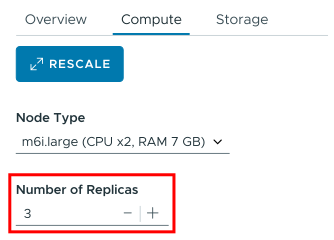
Figure 8 - Scaling the cluster to three replicas
The ACM will create our ReplicatedMergeTree tables on the new replica. For our CAS-based table, that shouldn’t make any difference. For the S3-based table, on the other hand. we should have additional storage for another copy of our existing table. Once the new replica is online and everything has merged, we should see a significant difference between the storage sizes of the two tables.
In our three-replica cluster, the CAS disk is as efficient as we would expect:
aws s3 ls s3://castest-12345678-chi-clickhouse-data/cas-edb/cas-test
  --recursive --summarize --human-readable
Total Objects: 339
   Total Size: 156.0 MiB
For the table stored on an S3 disk, however, we’ve got the full overhead of a different copy on each replica:
aws s3 ls s3://castest-12345678-chi-clickhouse-data/clickhouse/cas-test/ \
  --recursive --summarize --human-readable
Total Objects: 66
   Total Size: 454.6 MiB
(Again, these numbers are after ClickHouse has finished merging the tables.)
Using CAS disks with TTL
As we discussed earlier, writes to CAS disks are expensive. For that reason, they’re best used with TTL. We’ll look at a policy that stores older data on a CAS disk, with newer data written to the system’s default storage. We can modify the cas_disk.xml file above by adding a new policy called cas_with_ttl:
<clickhouse>
  <storage_configuration>
    <disks>
      <cas>
        . . .
      </cas>
      <cas_cache>
        . . .
      </cas_cache>
    </disks>
    <policies>
      <cas>
        . . .
      </cas>
      <cas_with_ttl>
        <volumes>
          <hot>
            <disk>default</disk>
          </hot>
          <cold>
            <disk>cas_cache</disk>
          </cold>
        </volumes>
        <move_factor>0.1</move_factor>
      </cas_with_ttl>
    </policies>
  </storage_configuration>
</clickhouse>
The new storage policy defines volumes named hot and cold. Now we can define a new table that uses the new policy and its volumes:
CREATE TABLE events_with_ttl ON CLUSTER '{cluster}'
(
    id       UInt64,
    ts       DateTime,
    user_id  UInt64,
    amount   Decimal(10, 2),
    category LowCardinality(String)
)
ENGINE = ReplicatedMergeTree
PARTITION BY toYYYYMM(ts)
ORDER BY (ts, id)
TTL ts + INTERVAL 30 DAY TO VOLUME 'cold'
SETTINGS storage_policy = 'cas_with_ttl';
Our table definition partitions data by month, and it says that any data with a timestamp older than 30 days should be written to the cold volume, which we’ve defined as our CAS disk. (The TTL setting applies to the timestamp in each record, not the time the record was created.) These two INSERT statements create data across the hot and cold volumes:
-- Historical data: we create 10 million records with timestamps
-- starting in Jan 2026...it's already past TTL, so it lands on CAS

INSERT INTO events_with_ttl
SELECT
    number AS id,
    toDateTime('2026-01-01 00:00:00') + number AS ts,
    number % 100000 AS user_id,
    (number % 10000) / 100 AS amount,
    ['books', 'games', 'tools', 'food'][number % 4 + 1] AS category
FROM numbers(10000000);

-- Recent data: 200,000 records with timestamps from the
-- last few days, so it stays on the default disk

INSERT INTO events_with_ttl
SELECT
    10000000 + number AS id,
    now() - toIntervalSecond(number) AS ts,
    number % 100000 AS user_id,
    (number % 10000) / 100 AS amount,
    ['books', 'games', 'tools', 'food'][number % 4 + 1] AS category
FROM numbers(200000);
When the INSERT statements are done, we can see how the data was partitioned:
SELECT partition, disk_name, count() AS parts, sum(rows) AS rows,
       formatReadableSize(sum(bytes_on_disk)) AS size
FROM system.parts
WHERE table = 'events_with_ttl' AND active
GROUP BY partition, disk_name
ORDER BY partition;
Sure enough, most of our data is on our CAS disk:
   ┌─partition─┬─disk_name─┬─parts─┬────rows─┬─size──────┐
1. │ 202601    │ cas_cache │     3 │ 2678400 │ 40.43 MiB │
2. │ 202602    │ cas_cache │     3 │ 2419200 │ 36.52 MiB │
3. │ 202603    │ cas_cache │     3 │ 2678400 │ 40.43 MiB │
4. │ 202604    │ cas_cache │     3 │ 2224000 │ 33.57 MiB │
5. │ 202610    │ default   │     1 │  200000 │ 3.02 MiB  │
   └───────────┴───────────┴───────┴─────────┴───────────┘
We’ve got 10 million records on our CAS disk and 200,000 in default storage.
Garbage collection
The CAS architecture keeps track of what parts are used by various clusters. When a reference to a part is removed (it was dropped, merged, or mutated), it becomes a candidate for garbage collection if nothing else references it.
Deletion is a two-step process. First, the garbage collector marks a part as unreferenced, then it checks again later before deleting it. The old_parts_lifetime setting above defines how many seconds elapse between the part being marked for deletion and the part being deleted. If there is any doubt about the safety of deleting the part, the garbage collector checks again after old_parts_lifetime seconds. Storage is freed shortly after a part is completely unreferenced, but not immediately.
If you want to see the details, the new system.cas_gc_log table logs garbage collection events.
SELECT
    hostname,
    event_time_microseconds,
    event_type,
    disk_name
FROM system.cas_gc_log
ORDER BY event_time DESC
    LIMIT 3
FORMAT VERTICAL
Here are the events when a part was deleted:
Row 1:
──────
hostname:                chi-cas-example-cas-example-0-0-0.chi-cas-example-cas-example-0-0.altinity-cloud-managed-clickhouse.svc.cluster.local
event_time_microseconds: 2026-10-23 15:57:14.680989
event_type:              Finish
disk_name:               cas

Row 2:
──────
hostname:                chi-cas-example-cas-example-0-0-0.chi-cas-example-cas-example-0-0.altinity-cloud-managed-clickhouse.svc.cluster.local
event_time_microseconds: 2026-10-23 15:57:14.680974
event_type:              Phase
disk_name:               cas

Row 3:
──────
hostname:                chi-cas-example-cas-example-0-0-0.chi-cas-example-cas-example-0-0.altinity-cloud-managed-clickhouse.svc.cluster.local
event_time_microseconds: 2026-10-23 15:57:14.072448
event_type:              Start
disk_name:               cas
Recommendations
To make the most of CAS disks, here are some guidelines:
- Don’t do frequent writes to CAS disks. Writes are expensive, so define TTL rules to use CAS for more stable data.
- Use compact parts more aggressively. The default
min_bytes_for_wide_partis only 10M; it can be safely increased to 100M or more. There is also the settingmin_level_for_wide_partthat can be set to 3 or 4 to keep all low generation parts in compact format. - Shard the pool for big deployments. If cluster sharding is fixed, it can be done by adding the
{shard}macro to the CAS disk’s endpoint.
The CAS documentation in the Antalya repo has more hints and tips.
Summary
CAS is a great way to keep storage costs in line without sacrificing reliability. It can be used with TTL as part of a two-tiered storage system, letting you create as many replicas of cold data as you need without increasing your storage bill with each new replica. Our goal is to have a GA-level version of CAS in open-source ClickHouse by the end of 2026.