Configuring Storage

Clicking the Storage menu item displays the list of volumes for your ClickHouse® cluster:

Figure 1 - The Volumes view
The shaded rows in Figure 1 show unmanaged object storage created manually. Clicking the  icon shows this message:
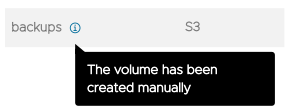
Figure 2 - Manually created volume message
There are several buttons at the top of the display:

- MODIFY VOLUME - Lets you make changes to the selected volume.
- ADD VOLUME - Lets you add another volume to your cluster.
- ADD OBJECT STORAGE - Lets you add object storage to your cluster. This is currently disabled; contact Altinity support if you need object storage.
- CORDON VOLUME - Changes the selected volume’s status to cordoned. A cordoned volume will not receive any new data; cordoning a volume is the first step towards removing it.
- FREE VOLUME - Moves all data from the selected volume to non-cordoned volumes in the cluster.
- REMOVE VOLUME - Removes the selected volume from the cluster.
We’ll cover these options next.
Modifying a volume
Selecting a volume and clicking the  button lets you change the properties of the selected volume. At a minimum, this allows you to change the type of disk and its size:
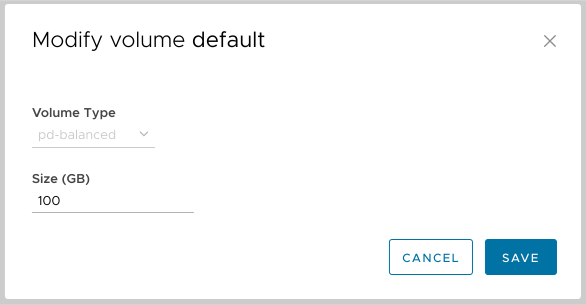
Figure 3 - The Modify Volume dialog
Clicking the  icon displays a menu of available disk types based on the cloud provider hosting your ClickHouse cluster. You can also change the size of the volume. An estimate of the monthly cost of this volume appears at the bottom of the dialog.
Be aware that you cannot make a volume smaller:

Figure 4 - Cannot reduce the size of a volume
Contact Altinity support for guidance if you need a smaller volume. The strategy for using less storage varies depending on your requirements.
The dialog may have other options based on your cloud provider. For example, if your ClickHouse cluster is hosted on AWS, you can change the throughput of the volume:

Figure 5 - Setting throughput for an AWS volume
Click SAVE to save your changes.
Adding a volume
Clicking the  button lets you add another volume to your cluster:
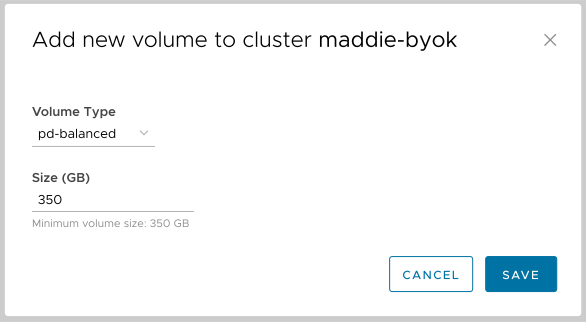
Figure 6 - The Add New Volume dialog
Be aware that the size of each volume must be at least 350 GB to use multiple volumes. As with modifying a volume, additional options may be available based on your cloud provider, and your estimated cost is displayed at the bottom of the dialog.
Click SAVE to add the new volume. It will appear in the list of volumes.
Adding object storage
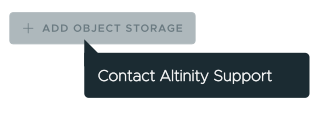
Figure 7 - Contact Altinity support to add object storage
This button automates the allocation of object storage. It is currently disabled. You can follow the instructions on the Working with Object Disks page to set up object storage by hand, but we recommend that you contact Altinity support if you need object storage.
Cordoning a volume
Selecting a volume and clicking the  button cordons the volume, which means no new data will be written to that volume. Clicking the button changes its text to UNCORDON VOLUME, which reverses the operation. A cordoned volume can be freed, which moves all data from the volume to non-cordoned volumes in the cluster.
Freeing a volume
Selecting a volume and clicking the  button moves all data from the selected volume to non-cordoned volumes in the cluster. You must first cordon the volume for the FREE VOLUME button to be enabled. You’ll be asked to confirm that you want to free the volume:
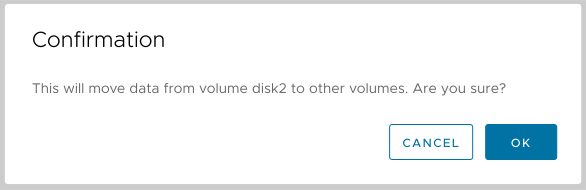
Figure 8 - The Free Volume dialog
When all data is moved off of this volume, the REMOVE VOLUME button will become active.
Removing a volume
If the selected volume has no data, the  button will be active. To remove a volume, you must cordon it, which means no new data will be written to it, then free the volume, which moves any data on the volume to non-cordoned volumes. As you would expect, clicking the button gives you a confirmation message:
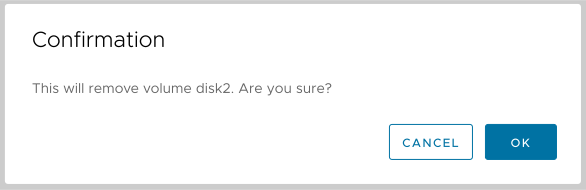
Figure 9 - The Remove Volume dialog
Click OK to remove the volume.