Configuring Backup Settings
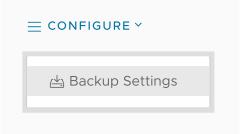
You can define a schedule for creating backups of an individual cluster. The Backup Settings dialog lists the current schedule:
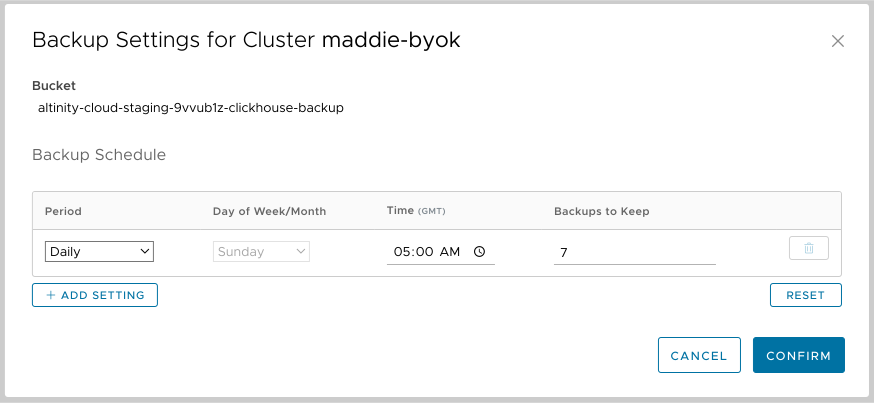
Figure 1 - The Backup Settings dialog for an individual cluster
The fields in the dialog are discussed below.
Enable Scheduled Backups for the Cluster
This slider lets you enable or disable backups for a single cluster. For example, if you have a development cluster that doesn’t have any important data, you can disable backups for that cluster without disturbing any other cluster’s backup settings.
Be aware, however, that cluster backups are only done if backups are enabled for the environment that contains them. If backups are currently disabled for the environment, you’ll see a red triangle icon. Clicking on the icon explains the situation:
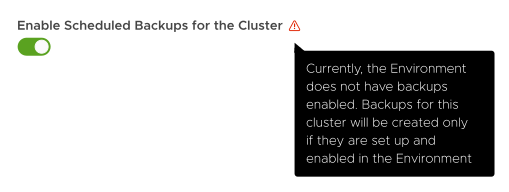
Figure 2 - Backups must be enabled at the environment level
See the Environment backup configuration documentation to see how to enable backups at the environment level. Be aware that you must have administrator privileges to change the environment-level setting.
Bucket
The read-only name of the bucket where backups are stored.
Backup Schedule
There are five options to define the Period when backups should occur:
- Monthly - Define the day of the month
- Weekly - Define the day of the week
- Daily - Define the time of day
- Every 6 hours - Backups occur every six hours
- Every hour - Backups occur every hour.
NOTE: All times are expressed in GMT and are displayed in 12- or 24-hour format depending on your machine’s settings.
In addition to defining the period, you can also define the number of backups to keep. The default is seven.
The  button lets you define multiple schedules. For example, if you only want backups to occur on Friday and Saturday, create two Weekly schedules, one for Friday and one for Saturday. You can define up to three schedules.
Preferred Backup Replica
This setting lets you select the preferred replica for backups. That replica will be used if it is active.
Extra Parameters
This entry field lets you enter extra parameters for the clickhouse-backup create_backup command of the Altinity Backup for ClickHouse utility. Whatever you enter in this field is inserted directly into the command without escaping. As an example, to back up a portion of your data, you can use the --tables option to specify the tables that should be backed up.
For complete details on the create_backup command, see the documentation in the utility's repo.
Advanced Settings
Clicking this button takes you to the read-only Advanced Backup Settings dialog:
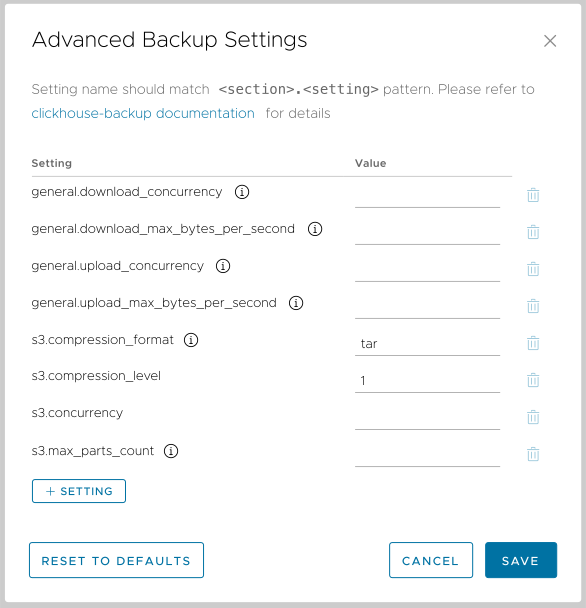
Figure 3 - The Advanced Backup Settings dialog
These settings can only be changed by Altinity support; contact us if you need any changes.