Viewing your Environments
In working with Environments, you’ll always start by selecting the Environments tab to load the list of Environments:
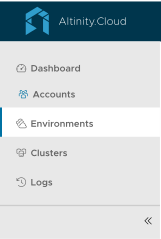
Figure 1 - The Environments tab
The Environment list view
Here’s the Environment list view. Clicking any environment name in the list takes you to the environment summary view:
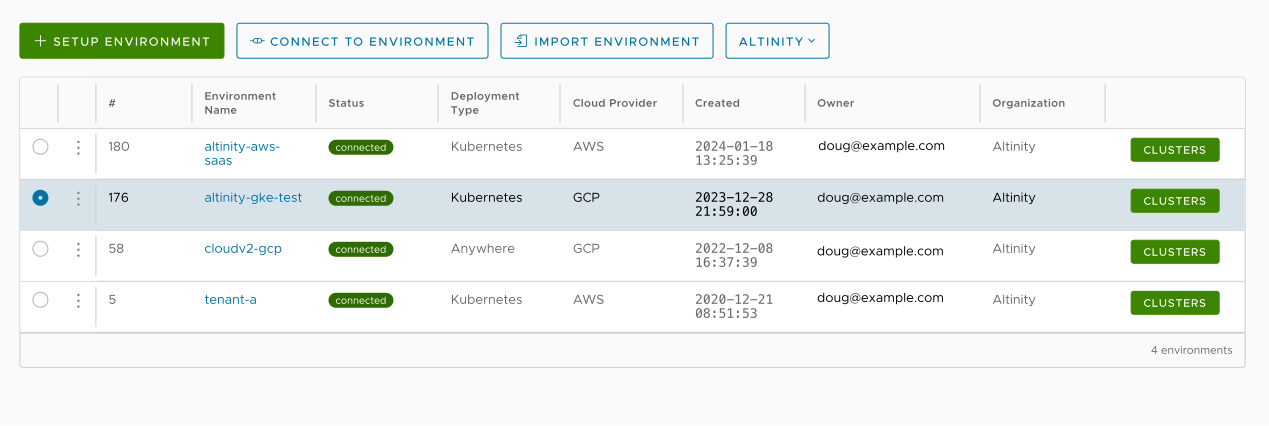
Figure 2 - The list of Altinity.Cloud Environments in your account
There are three buttons above the list of environments:
 - click this button to create a new environment. The Creating an Environment page has all the details.
 - click this button to connect to an existing environment.
 - click this button to import an environment definition. See the Exporting an Environment page for more details.
The environment list also shows the organization you’re in (ALTINITY DEV in Figure 2). If your company has more than one organization, clicking the  icon shows you all of your organizations.
The columns in the table are:
-
Select button
 - Lets you select an Environment for operations and includes the
  vertical dots icon, which includes options to Edit, Export, or Delete the environment or look at the environment's audit logs.
 -
Name - Um, the name of the environment.
-
Status - The status of the cluster.
 is what we’re looking for here.
 -
Deployment - The kind of deployment, either Anywhere (BYOK), Anywhere (BYOC), or Anywhere (SaaS).
-
Provider - Either AWS, GCP, Azure, or HCLOUD (Hetzner).
-
Region - The region where the environment is running.
-
Created - When the Environment was created.
-
Owner - The ID of the Environment’s administrator.
-
Organization - The Organization that owns this Environment.
-
The
 link - Clicking this takes you to the Clusters (plural) view of the ClickHouse® clusters in this environment.
The Environment summary view
When you click the name of an environment, you’ll be taken to its summary view:
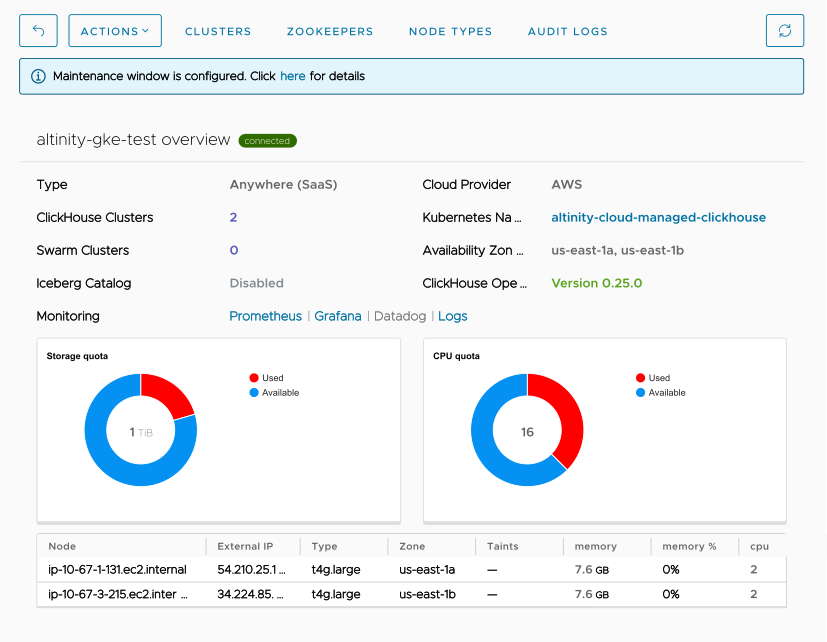
Figure 3 - The Environment summary view
Figure 3 is a summary of an Altinity.Cloud environment named altinity-maddie-saas that is running in Altinity’s Cloud (SaaS). It has two ClickHouse clusters, one swarm cluster, and an Iceberg catalog has been defined.
Action buttons
There are four buttons at the top of the Environment summary view:
 - takes you to the Environment configuration dialog. See the Configuring your Environment page for details.
 - lets you export your environment to a file that can be imported later. For more information about exporting an environment, including what data formats are available, see the Exporting an Environment page.
 - synchronizes the view with its current state in the ACM. It’s unlikely that you’ll ever need this button, fwiw.
 - deletes the environment. There are a number of considerations for deleting (or disconnecting) an environment; see the Deleting an Environment page for more information.
You can also click the  link to go to the Clusters (plural) view of the ClickHouse clusters in this environment.
The Environment name and status
Beneath the buttons is the name of the environment (altinity-maddie-saas) and its status. is the status we’re looking for. The  calendar icon means that a maintenance window has been defined for this environment. See the Defining Maintenance Windows page for details.
Information panels and configuration dialogs
Next are tabs for various information panels and configuration dialogs:
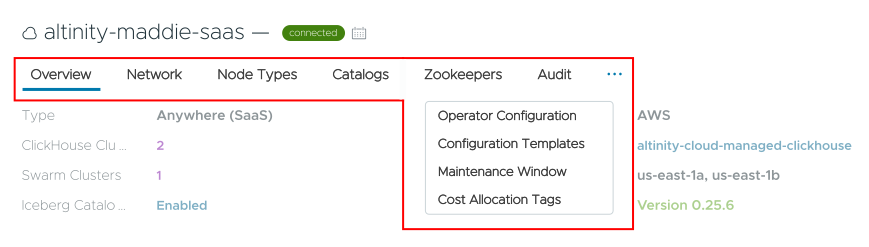
Figure 4 - Tabs on the Environment view panel
Clicking the  icon displays the drop-down for four additional tabs as shown in Figure 4.
The Overview panel in Figure 3 gives you a, well, overview of your environment’s details. You can skip ahead to the discussion of the Overview panel below if you like. The other nine tabs let you configure your environment. They’re covered in the following sections:
- Network - Define network connections
- Node Types - Define custom node types
- Catalogs - Enable Iceberg catalogs
- Zookeepers - Deploy, scale, and manage Zookeepers
- Audit - View audit logs for your environment
- Operator Configuration - Configure the Altinity Kubernetes Operator for Kubernetes
- Configuration Templates - Create repeatable environment deployments
- Maintenance Window - Define maintenance windows
- Cost Allocation Tags - Label resources for tracking costs and chargebacks
The Overview panel
Most of the information at the top of the panel is self-explanatory. In Figure 1, this is a SaaS environment hosted on AWS. It has two ClickHouse clusters and one swarm cluster; clicking the 2 or 1 next to those headings takes you to the Clusters (plural) view of the ClickHouse clusters in this environment.
This environment has one or more Iceberg catalogs enabled. Clicking the Enabled link next to “Iceberg Catalogs” takes you to the Catalogs tab of the Environment view page, where you can see the details of your Iceberg catalogs. The Enabling Iceberg Catalogs page has all the details.
The Monitoring section has links to three monitoring tools:

Figure 2 - Available monitoring tools
Clicking the Prometheus, Grafana, or Datadog links takes you to the corresponding monitoring tool. There are default views for all three tools; for the first two, take a look at the documentation for integrating Prometheus and integrating Grafana.
The Datadog link (disabled in the figure above) lets you configure a connection to your Datadog account. Clicking the link (whether enabled or disabled) takes you to the Metrics tab of the Environment configuration panel.
You can integrate Datadog at the environment level; if your environment is enabled for Datadog, you can then enable it at the cluster level. The Integrating Datadog page has all the details for configuring Datadog.