Viewing Environment Audit Logs
There are two ways to view an environment’s audit logs. You can go to the list of environments, click the  vertical dots icon next to your environment name and select Audit Logs from the menu:
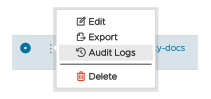
Figure 1 - The Audit Logs Environment menu
You can also get to the Audit Logs dialog by clicking the Audit tab on the Environment summary view:
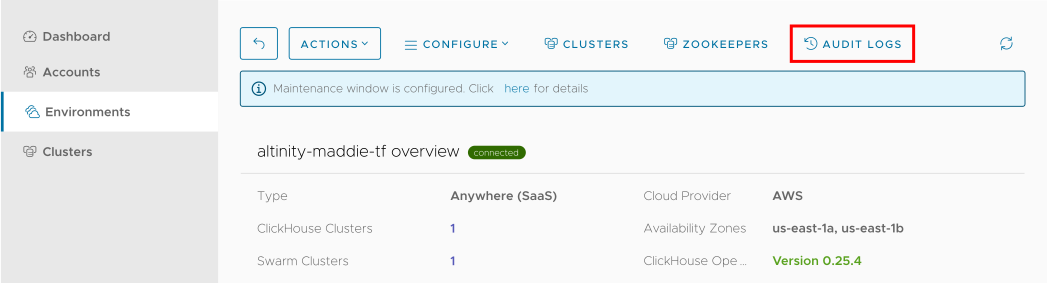
Figure 2 - Accessing the Audit Logs dialog from the Environment summary view
Figure 2 shows the ACM Logs tab, which lists all the things that have happened in the ACM, such as configuration changes, cluster stop / resume actions, or SQL statements that create or drop a table or database. You can click the  arrow to expand any item in the log to get more details:
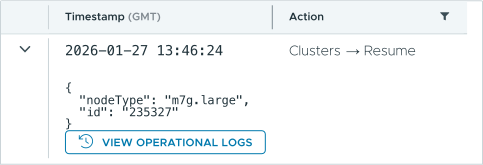
Figure 3 - Additional details for an event in the audit log
Clicking the  button gives you even more information about a particular event.
The Anywhere Logs tab shows similar information for your Altinity.Cloud Anywhere environment.