Viewing Cluster logs
Clicking the Logs menu lets you look at various system logs:
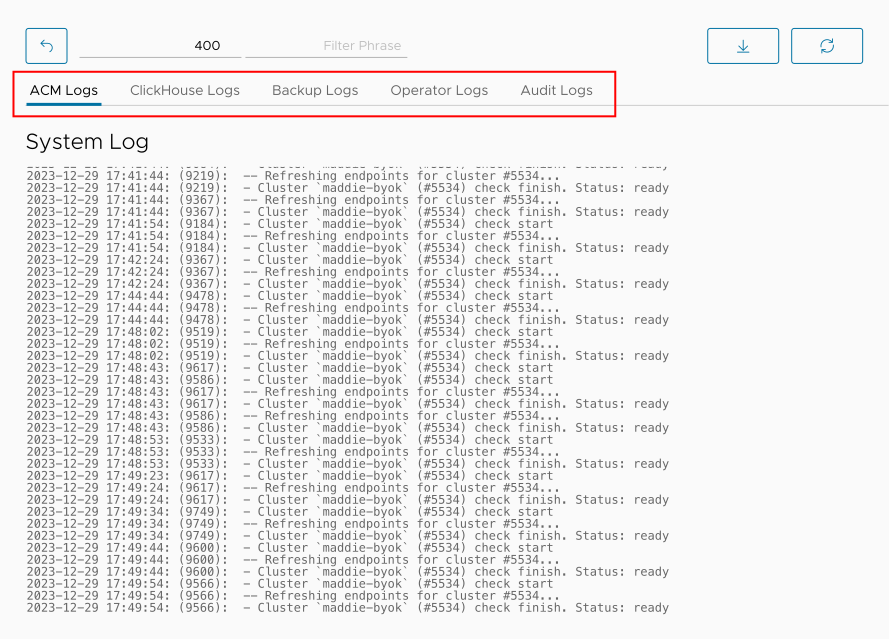
Figure 1 - The Logs panel
To the left above the logs themselves there are entry fields that let you enter a search phrase and set the number of messages to display. There is also a  button that lets you download the log.
Here are the details for the different kinds of logs:
The Audit Log in Figure 1 above lists the high-level operations that have taken place. The second entry is from the Resume a cluster operation. You can click the  button to get more details:
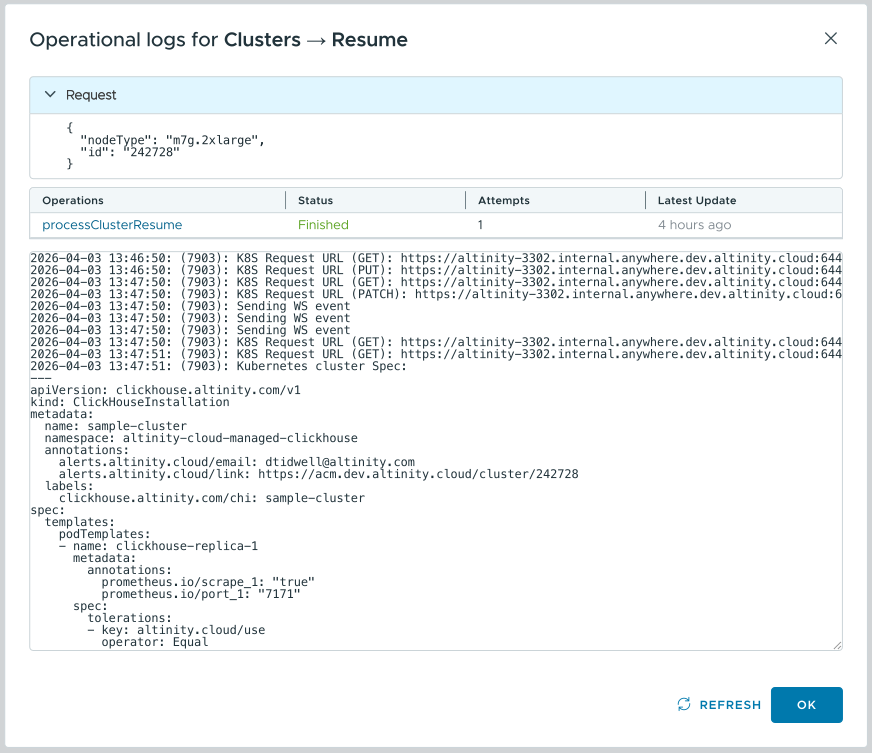
Figure 2 - The Operational log for a Resume Cluster operation
The ClickHouse Logs and Backup Logs initially display all the messages from all the nodes in the cluster. You can also choose a single node:
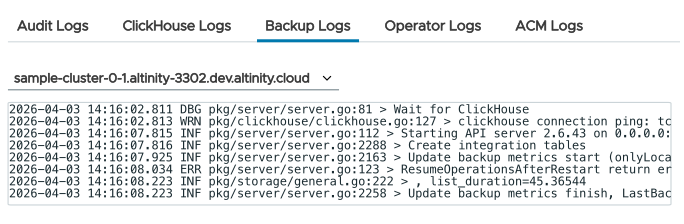
Figure 3 - The ClickHouse and Backup logs can focus on a single host
The Operator Logs display the messages generated by the Altinity Kubernetes Operator for ClickHouse.
Finally, the ACM Logs display two sets of messages: The System Log, which contains messages generated by system events, and the API Log, which logs events for calls to the ACM's API.
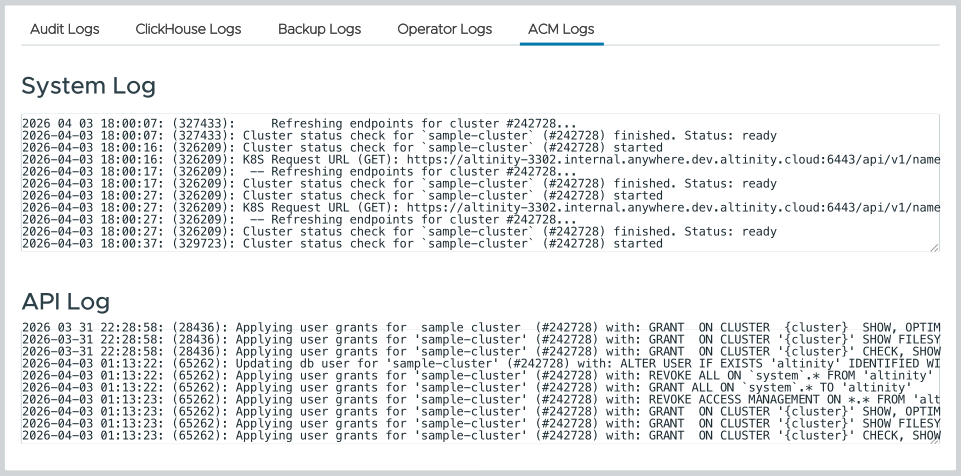
Figure 4 - The ACM Logs panel