The API Endpoints tab (beta)
The API Endpoints tab (currently in beta) lets you create ClickHouse® Query API Endpoints that let you invoke queries via REST. Those endpoints allow authorized applications to run a ClickHouse query without writing any SQL statements. (And without knowing anything about the structure of your database.)
NOTE
As a public service, we strongly recommend that you don’t develop your endpoints on a production system. Create and test your endpoints on a staging or development system, then use the import and export features to export your endpoint definitions and then import them into your production system.When you first see this tab, you won’t have any API endpoints:
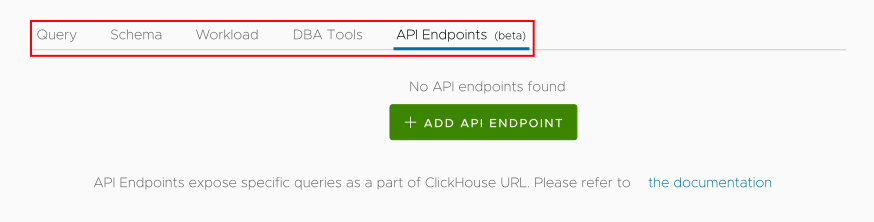
Figure 1 - The API Endpoints tab
You have two choices here: you can click the  button to create your own endpoints, or you can use the
  button to import a JSON file of endpoint definitions.
Defining an endpoint
Click the button to create an API endpoint. You’ll see this dialog:
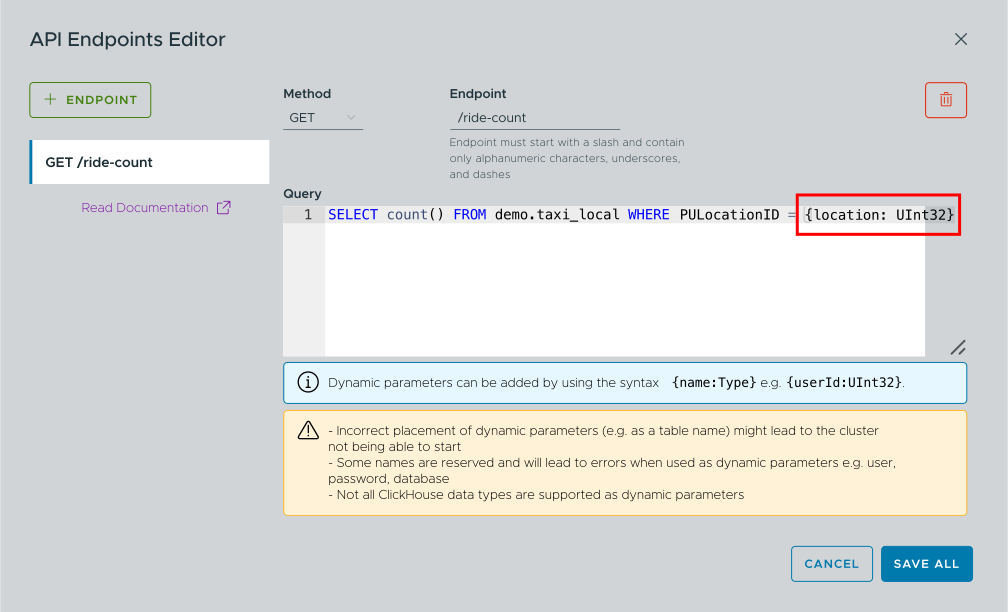
Figure 2 - Defining an endpoint
In Figure 2, we’ve defined a new endpoint named /ride-count that includes a parameter named location. The query returns the number of taxi rides whose PULocationID matches that parameter. Parameters are defined with the syntax {name:Type}.
Click the  button to save the endpoint. You’ll be taken back to the main API Endpoints panel:
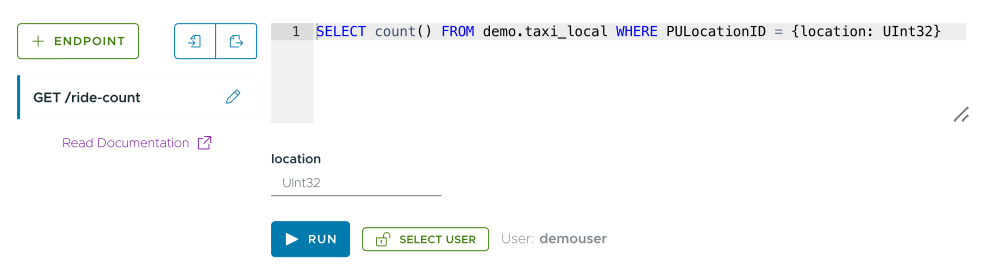
Figure 3 - The API Endpoints tab with a single endpoint defined
It may take 30 seconds until your ClickHouse cluster’s configuration is updated to support the new endpoint. You’ll see a message to that effect:

Figure 4 - Cluster configuration is being updated
Once the configuration is up-to-date, you can fill in a value for the location parameter and click the  button to run the query and see the results:
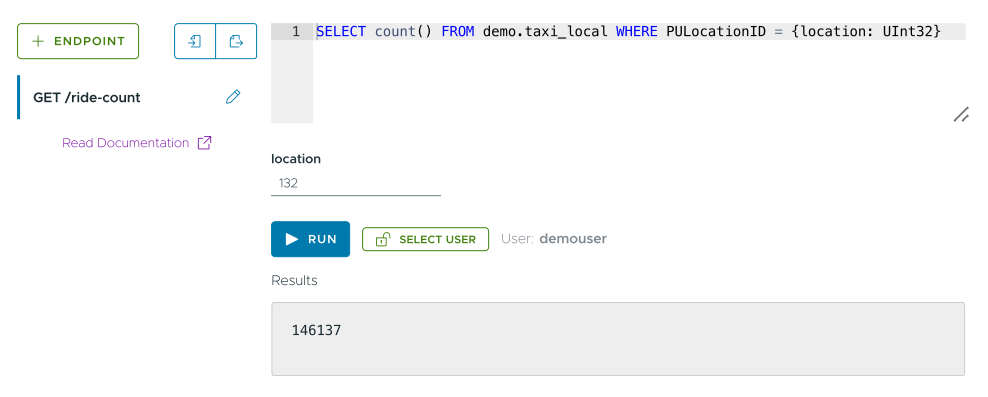
Figure 5 - Testing an endpoint with the RUN button
If you click the button before the configuration is updated, you’ll potentially see a confusing message like this:

Figure 6 - Cluster configuration not updated yet
If you see something like this, wait a few seconds and try again. It’s possible, of course, that the error in Figure 6 happened because there’s an actual error here. Look at the Errors subtab on the DBA Tools tab if waiting a few seconds doesn’t fix the problem.
When this endpoint is working, an application can invoke the endpoint https://[your endpoint]/ride-count?location=132 to see how many taxi rides started at location 132.
Of course, if you’re creating API Endpoints for applications, you may want to add FORMAT JSON (or whatever ClickHouse format your application needs) to your SQL statements:
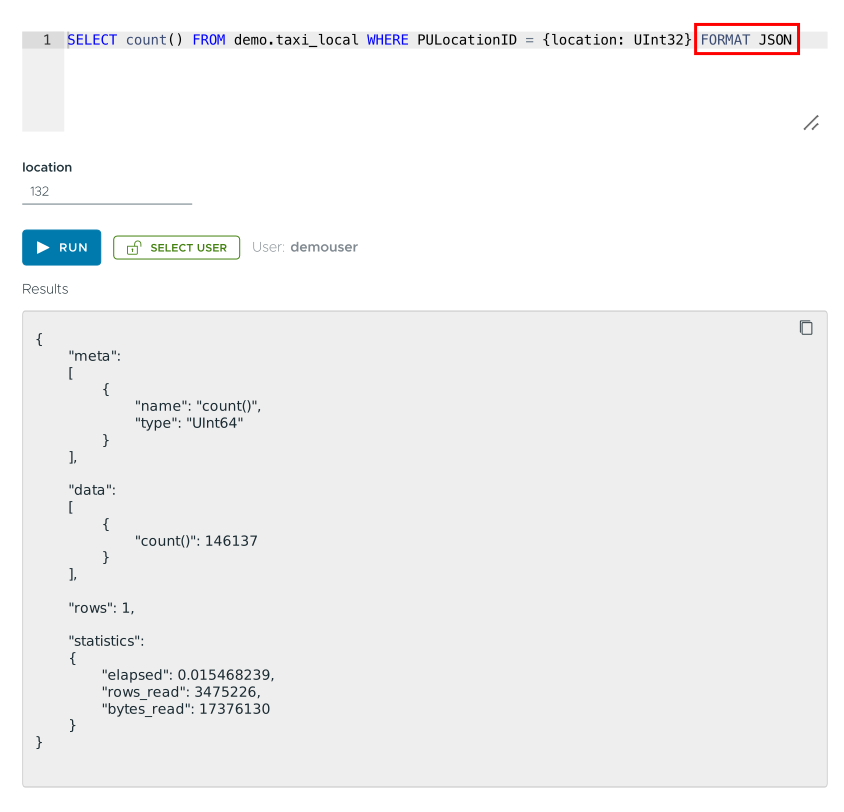
Figure 7 - JSON data returned by the endpoint
Modifying an endpoint
To modify an endpoint, click the  pencil icon next to the endpoint name to edit the query. (See Figure 3 above.)
Deleting an endpoint
To delete an endpoint, click the pencil icon next to any endpoint name, select the endpoint you want to delete in the list on the left-hand side of the dialog, then click the  trash can icon to delete it. Click SAVE ALL to save your changes. Your changes aren’t saved until you click SAVE ALL, so you can always click CANCEL to leave your API endpoints as they were.
Invoking an endpoint from outside the ACM
This is all well and good, but the point of defining API endpoints is to let applications run ClickHouse queries without building those queries themselves. As an example, we’ll get our cluster’s connection information from the Cluster Connection Details dialog, then use curl to invoke our simple query above:
curl https://admin:PASSWORD@clustername.altinity-maddie-byok.altinity.cloud:8443/ride-count?location=132
This request returns the data we’d expect:
146137
(Obviously this endpoint isn’t using FORMAT JSON.)
For more information about ways to connect to your cluster, see the Cluster Connection Details dialog. As you develop applications using your API Endpoints, the ClickHouse documentation for Query API Endpoints is also a useful reference.
Using other HTTP verbs
The GET verb is what you’ll probably use for your endpoints, but you can use the Method dropdown to select POST and DELETE as well. (See Figure 2 above.) As an example, say you have an IoT device that posts the current temperature in a warehouse every five seconds. An API endpoint that uses POST could let that device store time-series data into your database. Obviously POST and DELETE actually make changes to your data, so you’ll want to be especially careful about deploying endpoints that use those verbs.
The Altinity blog article Using Altinity.Cloud to Log Sensor Data with ClickHouse® Endpoints has a complete example on using POST to insert data into ClickHouse via an API Endpoint.
Access control
It’s great that you’ve given applications the ability to run ClickHouse queries through a REST endpoint, but you’ll obviously want to control who can access that endpoint. There are a couple of things you can do:
Use the Allowed IPs list
The most straightforward way to control access is with the Allowed IPs list. This lets you define addresses or ranges of IP addresses that are allowed to access your endpoint. See the documentation on configuring connections for all the details.
Create a user with limited access
Another thing you’ll likely want to do is create a user with limited access. A user with read-only access is recommended, although any endpoint that uses POST or DELETE will have to have write access. In addition, you can specify particular databases that the user is allowed to access. See the documentation on managing cluster users for more information.
When you’ve created a user with limited access, you can use the  button to test that user’s access:
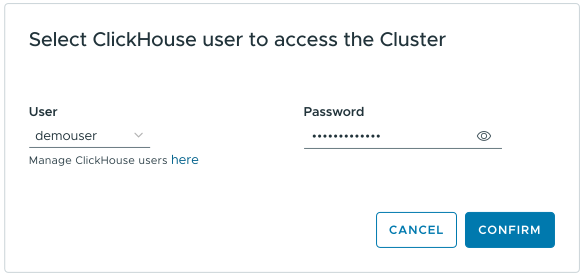
Figure 8 - The Select User dialog
By selecting another user, you can test your API endpoints to make sure that user’s permissions are working as you intended.
Importing and exporting endpoints
You can import and export a set of endpoints. The endpoints are defined in a JSON file, making it easy to reuse a set of endpoints across ClickHouse clusters. This feature is particularly useful when you’re creating a set of endpoints. Define and test them in a dev or staging environment, then export the endpoints and import them into your production environment when they’re ready.
Be aware that importing a file of endpoints deletes all of your currently defined endpoints.
Clicking the  Import Endpoints button brings up this dialog:
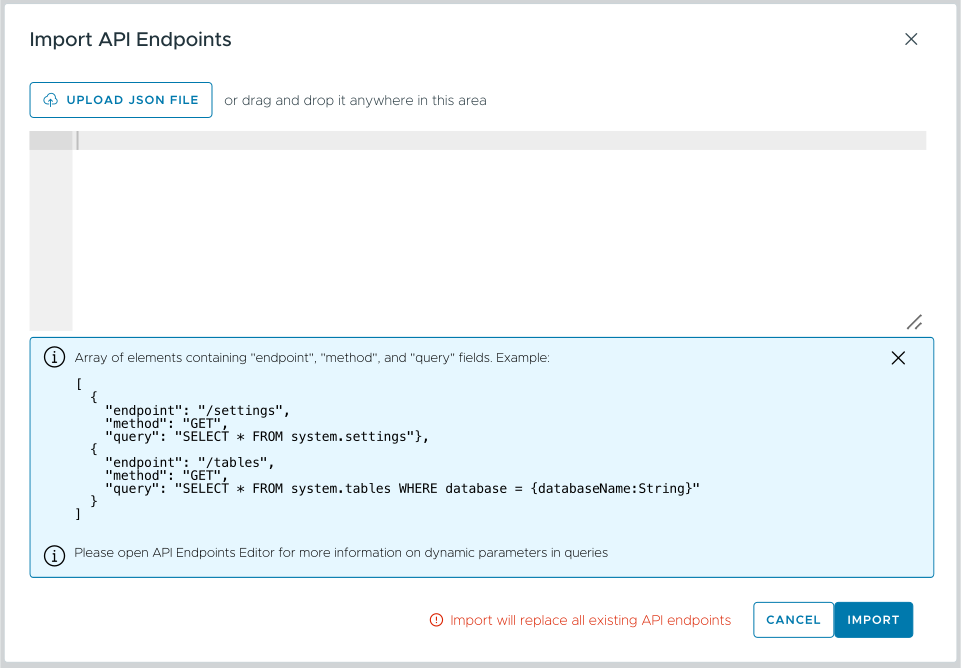
Figure 9 - The Import API Endpoints dialog
You can drag and drop a JSON file onto this dialog, click the  button to upload a file, or even paste JSON into the text area. Once you’ve set up the endpoints you want to import, click the
  button to import the endpoints.
The JSON file has the following structure:
[
  {
    "endpoint": "/endpoint-name",
    "method": "GET",
    "query": "SELECT ..."
  },
  {
    "endpoint": "/next-endpoint",
    "method": "GET",
    "query": "SELECT ..."
  }
]
Clicking the  Export Endpoints button downloads a file named
 api-endpoints.json to your machine. Once you have the JSON definition of your endpoints, you can import them into another ClickHouse cluster.